Signing in
-
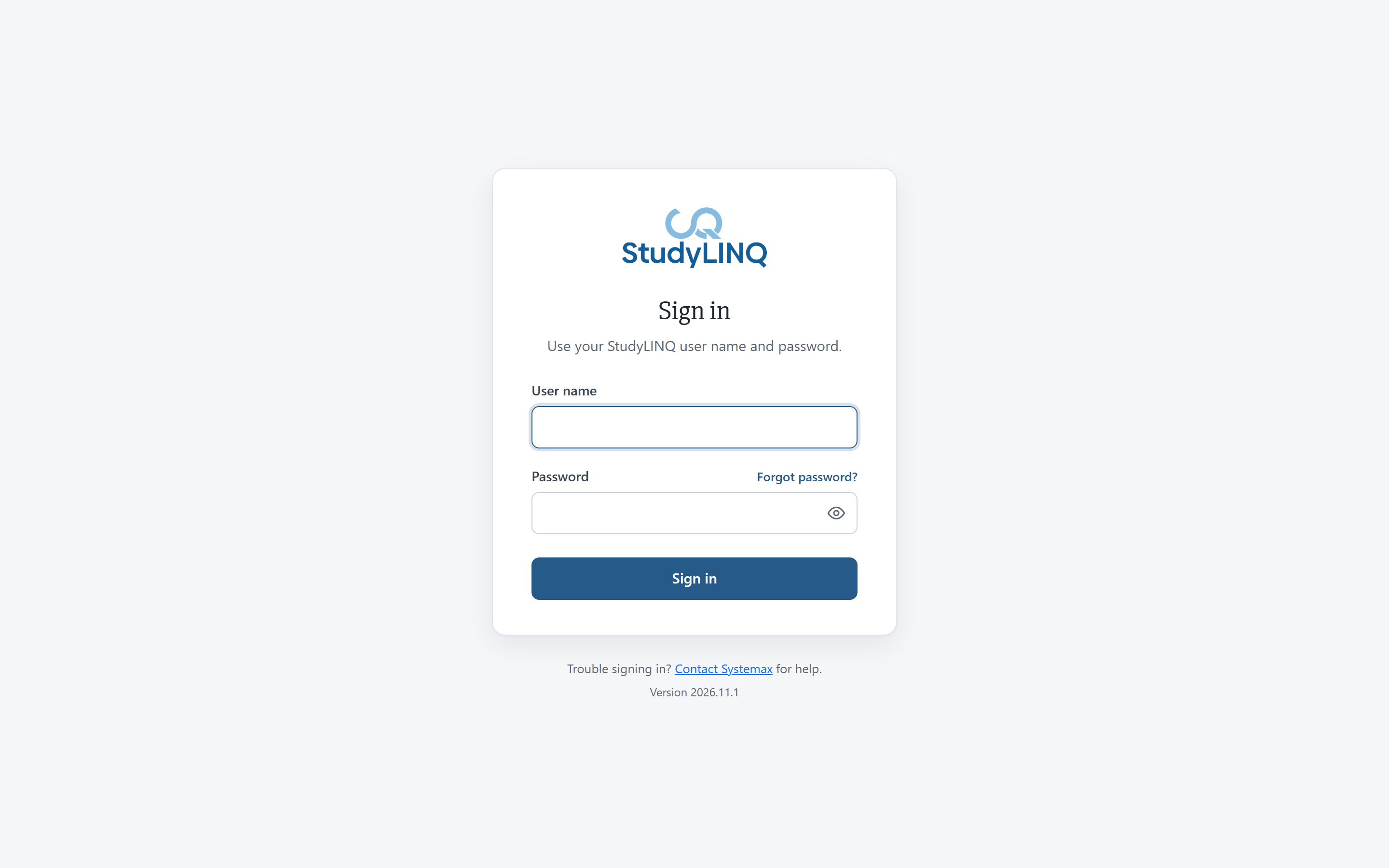
Enter your User name and Password. To check what you typed, click the eye icon in the password box.
-
Click Sign in.
After you sign in, Select a study opens (see below). If you have only one study, it is selected for you and your start page opens.
Verifying a new location
When you sign in from a location you haven't used before, Verify it's you opens and StudyLINQ emails you a verification code.
-
Open the email with the subject StudyLINQ sign-in verification code.
-
Type the 6-digit code into Verification code and click Verify and sign in.
Or click the link in the email. You can open the link on any device, such as your phone; the waiting page carries on by itself within a few seconds.
-
The code and link work for 15 minutes. Click Email me a new code for a new one.
-
After 5 incorrect codes, you go back to the sign-in page. Sign in again to get a new code.
-
The location is remembered for 180 days, so you aren't asked again from there.
If you get a verification email when you weren't signing in, don't use the code or link. Change your password and contact your system administrator.
Activating a new account
-
Open the welcome email and click the activation link.
-
Choose your password (see Password rules).
If the page says We couldn't activate your account, click Email me a new activation link and use the link in the new email.
When your password has expired
Your password has expired opens after you sign in. Enter a new password in both boxes and click Change password and continue.
Resetting a forgotten password
-
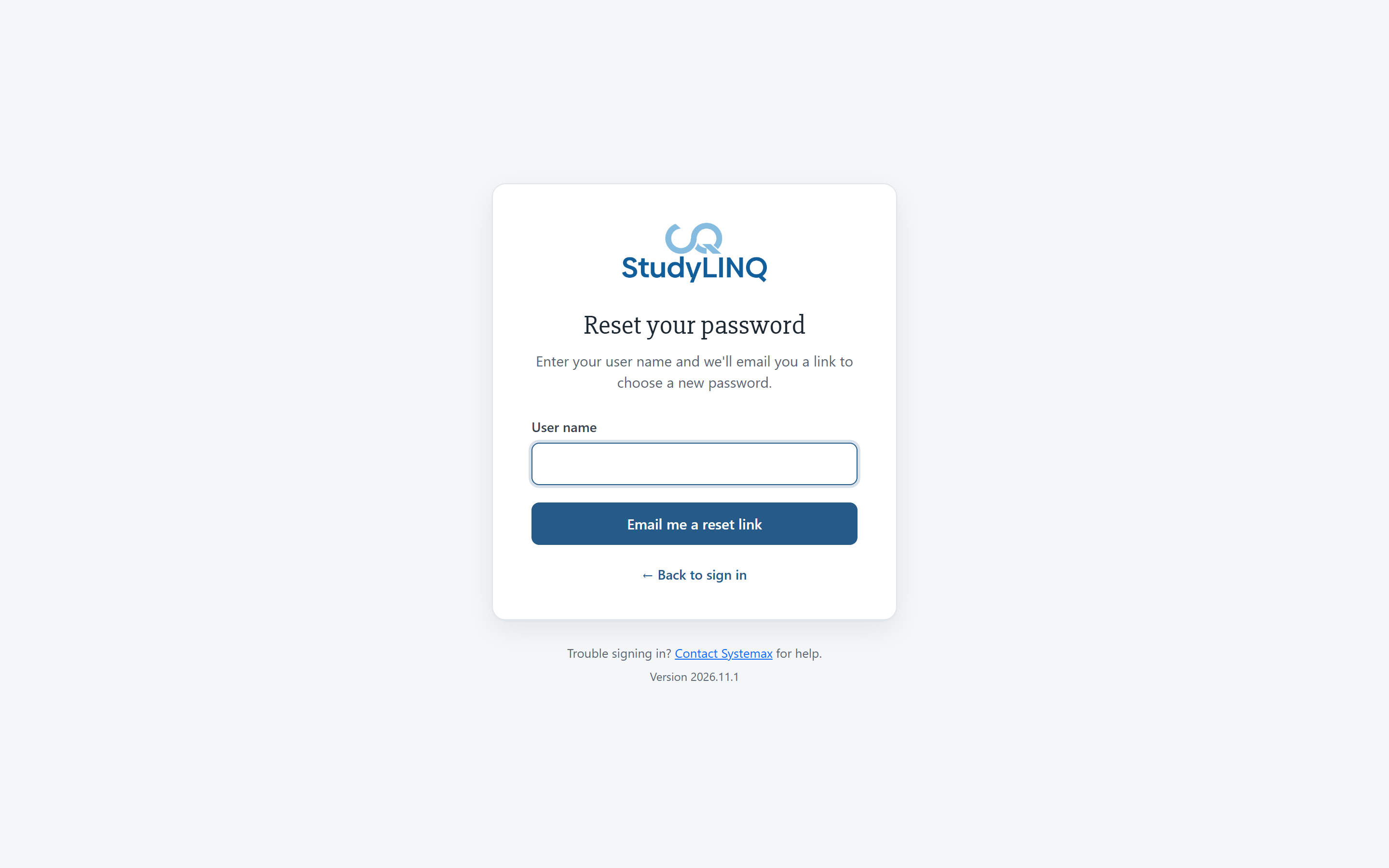
On the sign-in page, click Forgot password?
-
Enter your User name and click Email me a reset link.
-
Open the email and click the link. The link works for 30 minutes.
-
Enter your new password in New password and Confirm new password, then click Save new password.
If the link has expired, This link has expired opens. Click Request a new link.
Password rules
A checklist under the password shows each rule as you meet it. Your password must:
-
Be at least 8 characters long
-
Contain an uppercase letter, a lowercase letter, a number and a special character (for example ! # $ %)
-
Be different from your last 8 passwords
Choosing a study
-
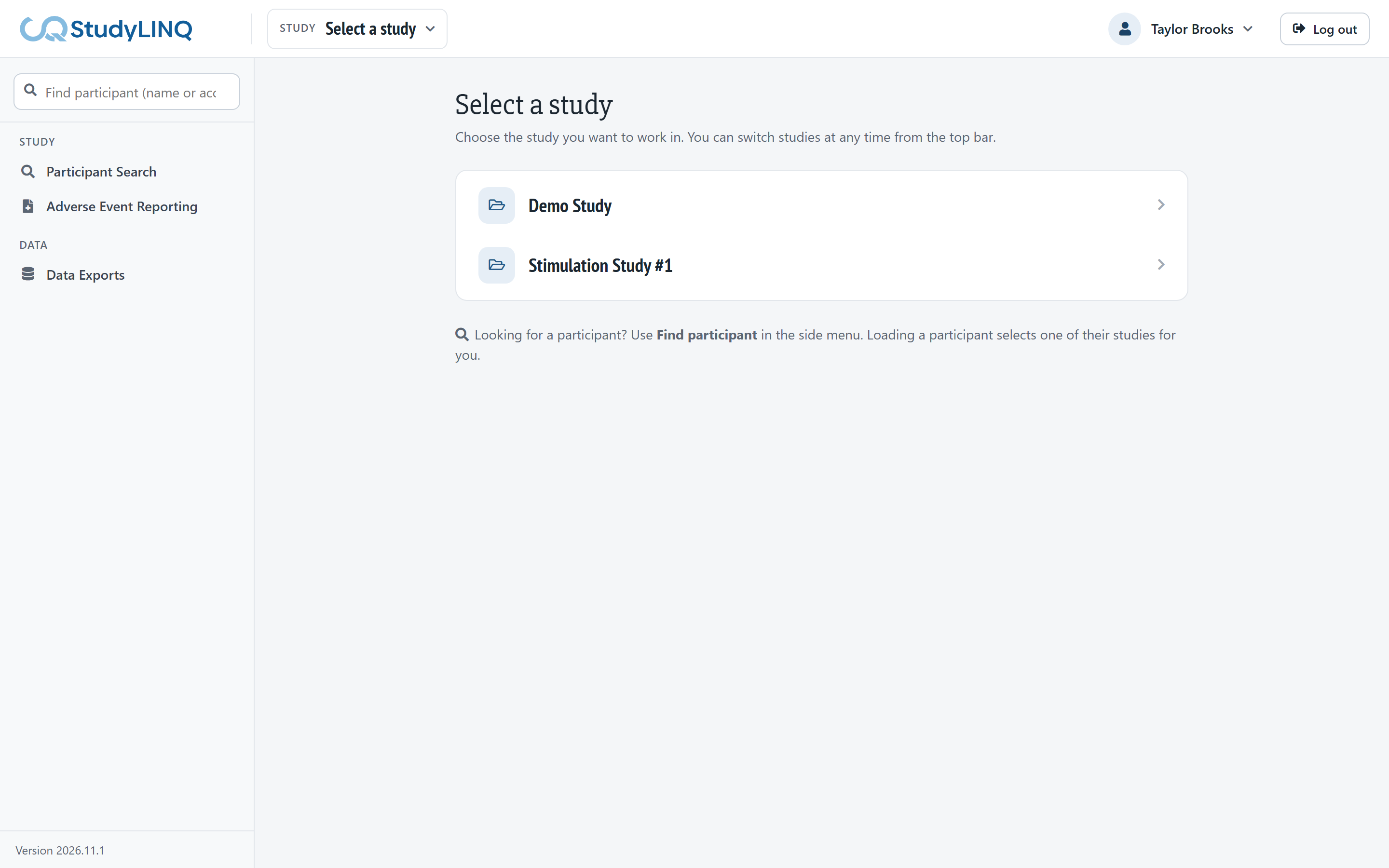
On Select a study, type in Filter studies to narrow the list (optional).
-
Click the study.
Your start page for that study opens:
|
Your role or access in the study |
Start page |
|---|---|
|
Lead Regulatory Coordinator, Medical Monitor, DSMB or Study Monitor |
Study Safety |
|
Study Dashboard access |
Study Dashboard |
|
Adverse Event Dashboard access |
Adverse Event Dashboard |
|
Review Dashboard access |
Review Dashboard |
|
Anyone else |
Participant Search (or Assessments, if a participant is loaded) |
If you don't see a study, ask your study administrator to give you access.
Switching studies
-
Click the study name in the top bar (Study).
-
Type to filter the list if you have many studies. You can also use the arrow keys and Enter.
-
Click the study. The page you were on opens again in the new study.
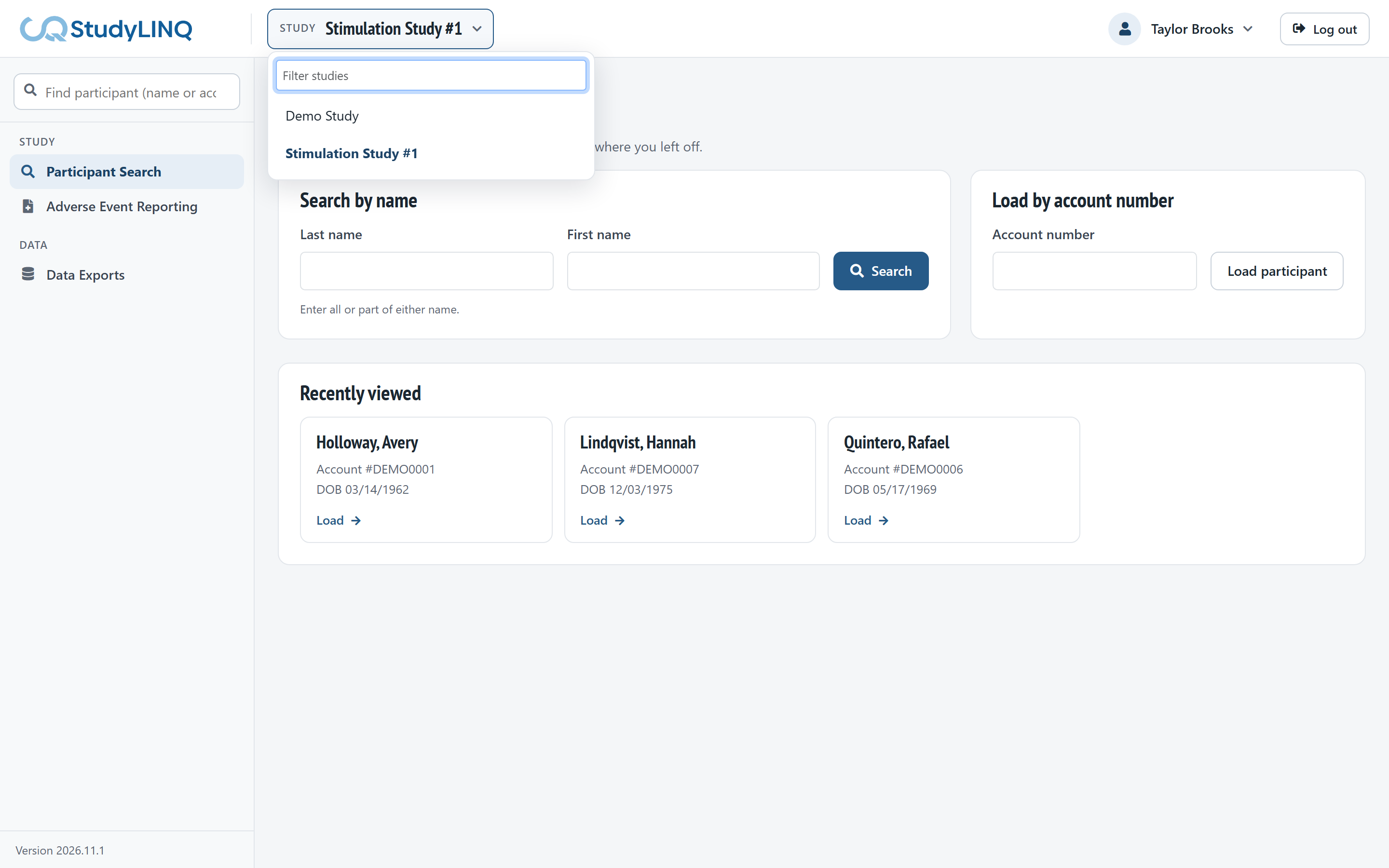
If a participant is loaded, the list shows only the studies that participant is enrolled in. Unload the participant to see all of your studies.
Finding your way around
-
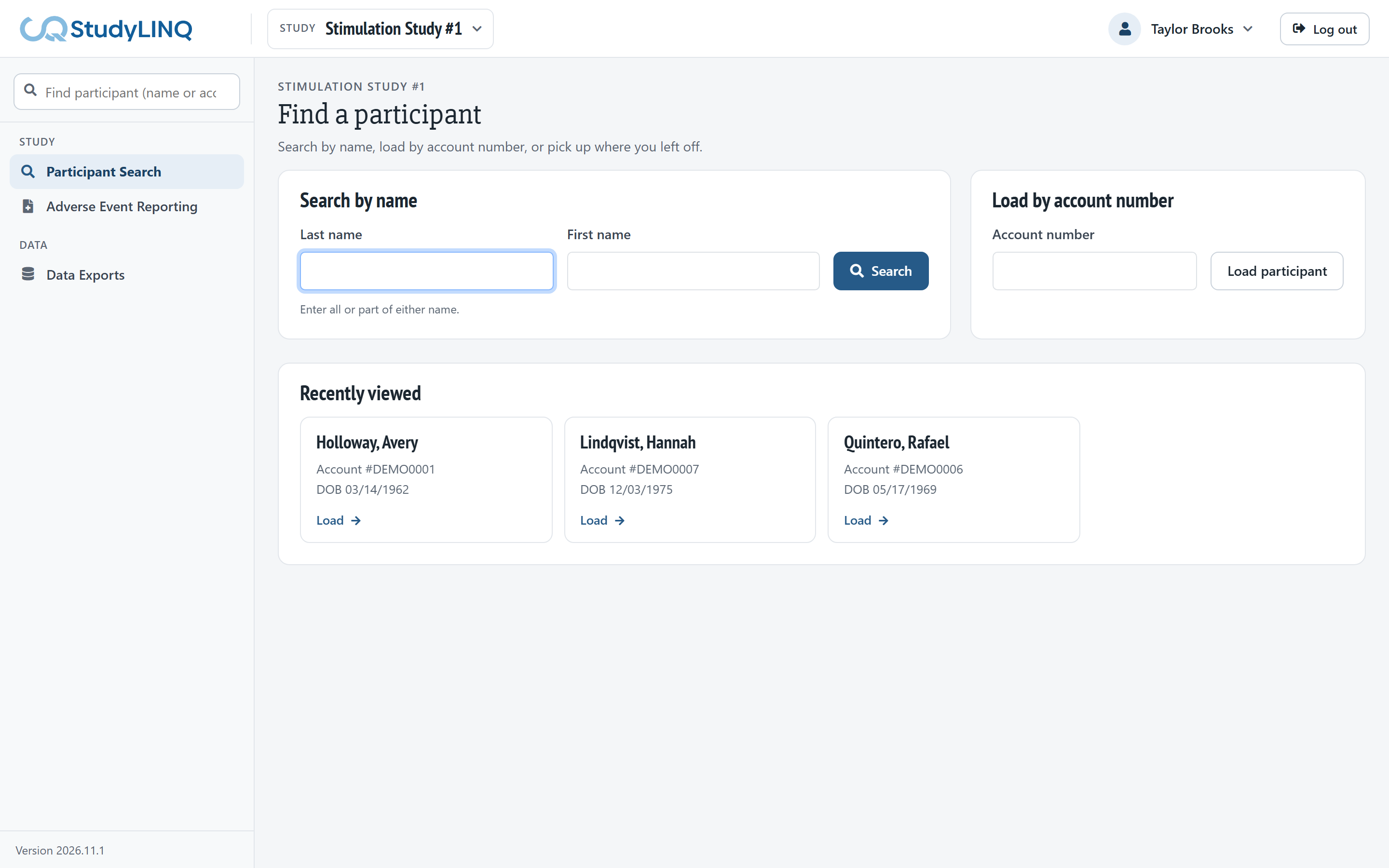
Top bar: the StudyLINQ logo (returns to your start page), the Study switcher, your name, and Log out.
-
Side menu:
-
Find participant box and the loaded participant's card at the top
-
Participant – Assessments, Study Timepoints, Medications, Progress Notes and Adverse Event Log (shown when a participant is loaded)
-
Study – Study Dashboard or Study Safety, Participant Search, Participant Registration, Review Dashboard, Surgery Implant Log, Adverse Event Dashboard and Adverse Event Reporting
-
Data – Data Exports and Study Data Download
-
Admin – User Maintenance and Password Reset (administrators only)
-
-
The version number is at the bottom of the side menu.
You see only the pages you have access to in the selected study. A red number next to Adverse Event Dashboard shows how many adverse events are waiting on you.
Messages you'll see
-
Saving… shows in the middle of the screen while a long save runs. Keep the page open until it closes.
-
A short message such as Saved shows in the middle of the screen after a save and closes by itself.
-
Before anything that can't be undone, a window asks you to confirm. Its buttons say what will happen, for example Remove download or Cancel.
-
You don't have access to … means your access isn't turned on for that page in the selected study. Switch studies in the top bar, or ask your study administrator.
-
Record not found means the record doesn't exist or isn't for the participant you have open. Check that the right participant is loaded.
Your profile and time zone
-
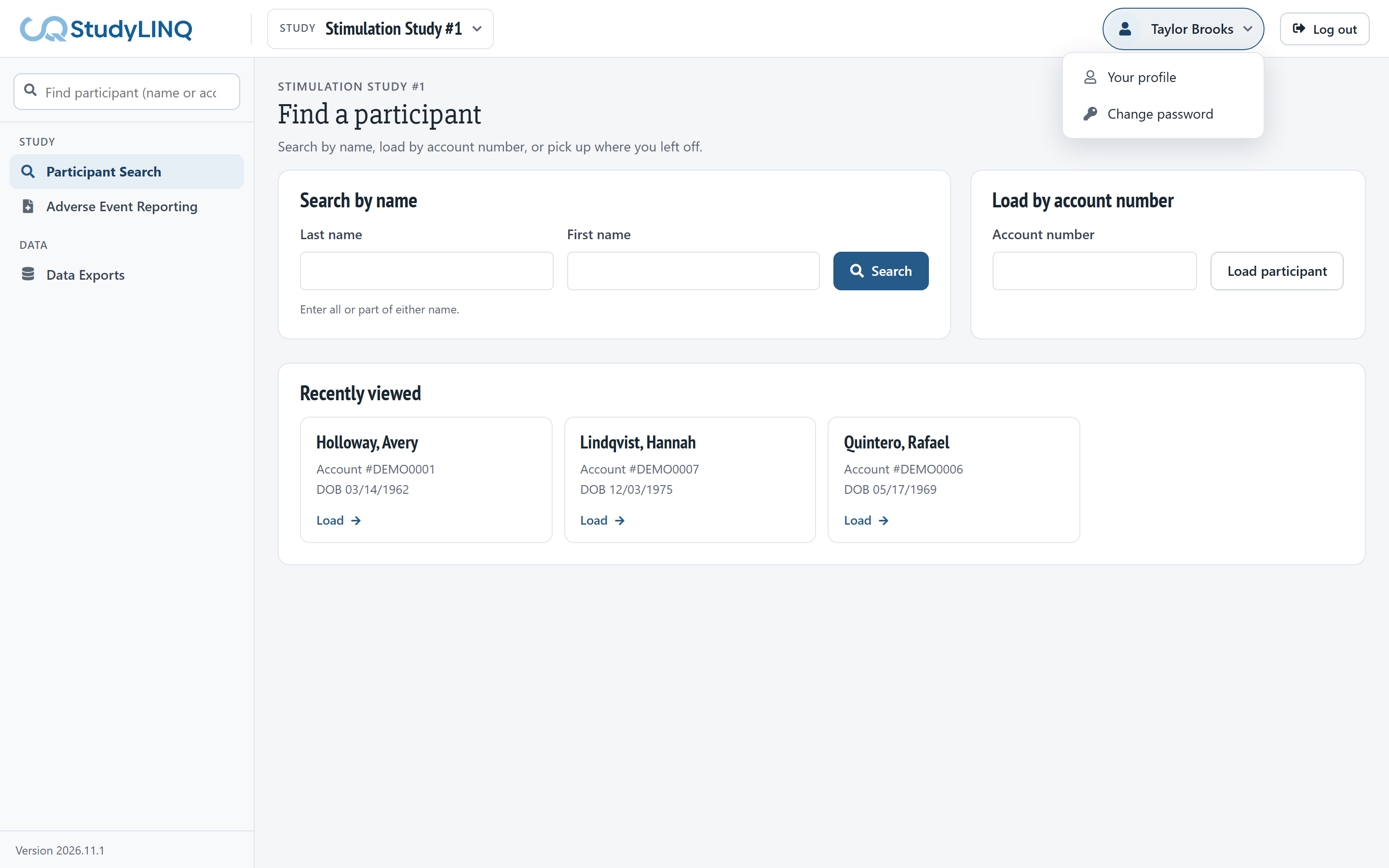
Click your name in the top bar, then Your profile.
-
Update your First name, Last name, Full name, Email, Phone or Default time zone.
-
Click Save changes.
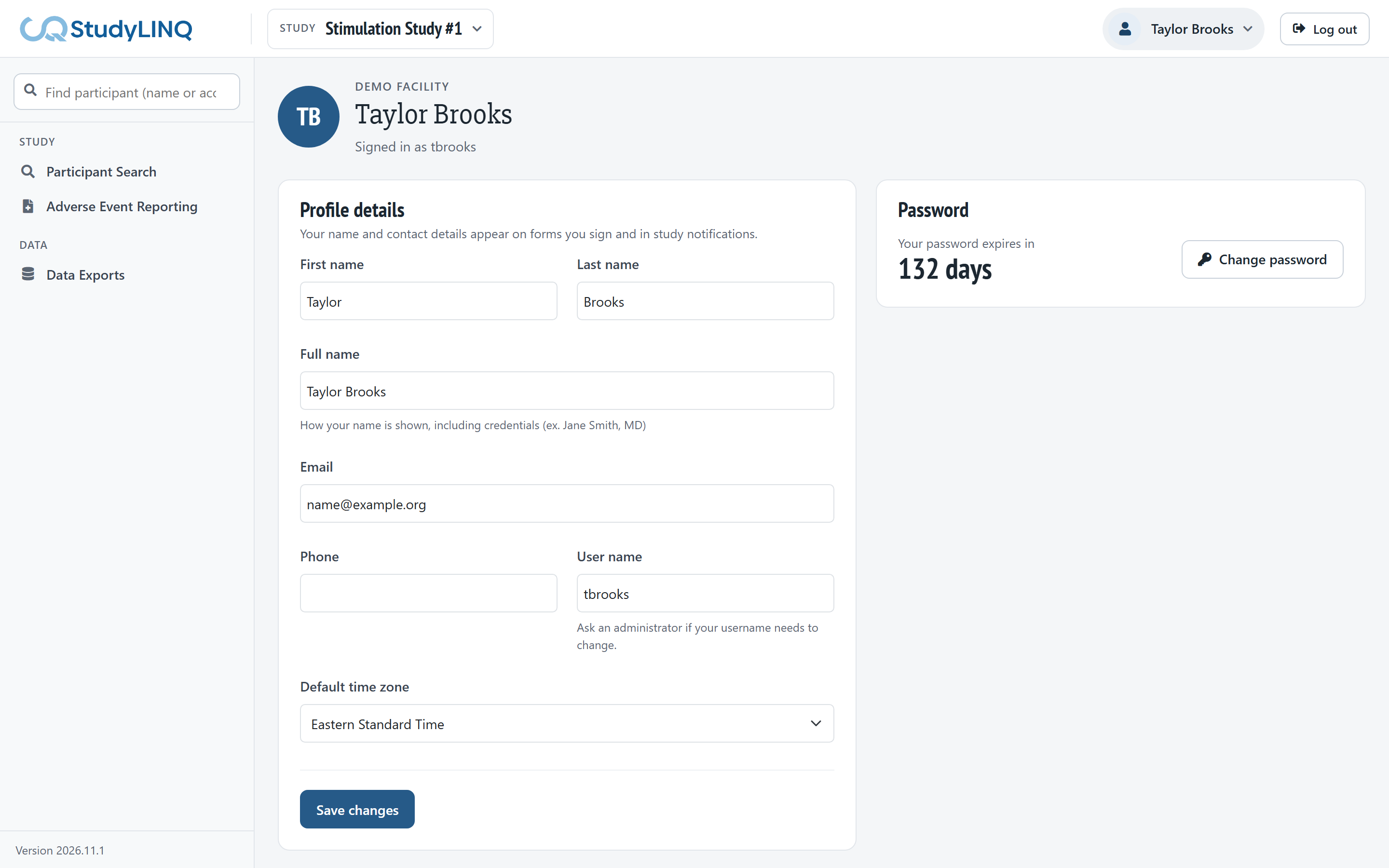
Dates and times show in your time zone. Your name appears on forms you sign. Your user name can't be changed here; ask your administrator.
Changing your password
-
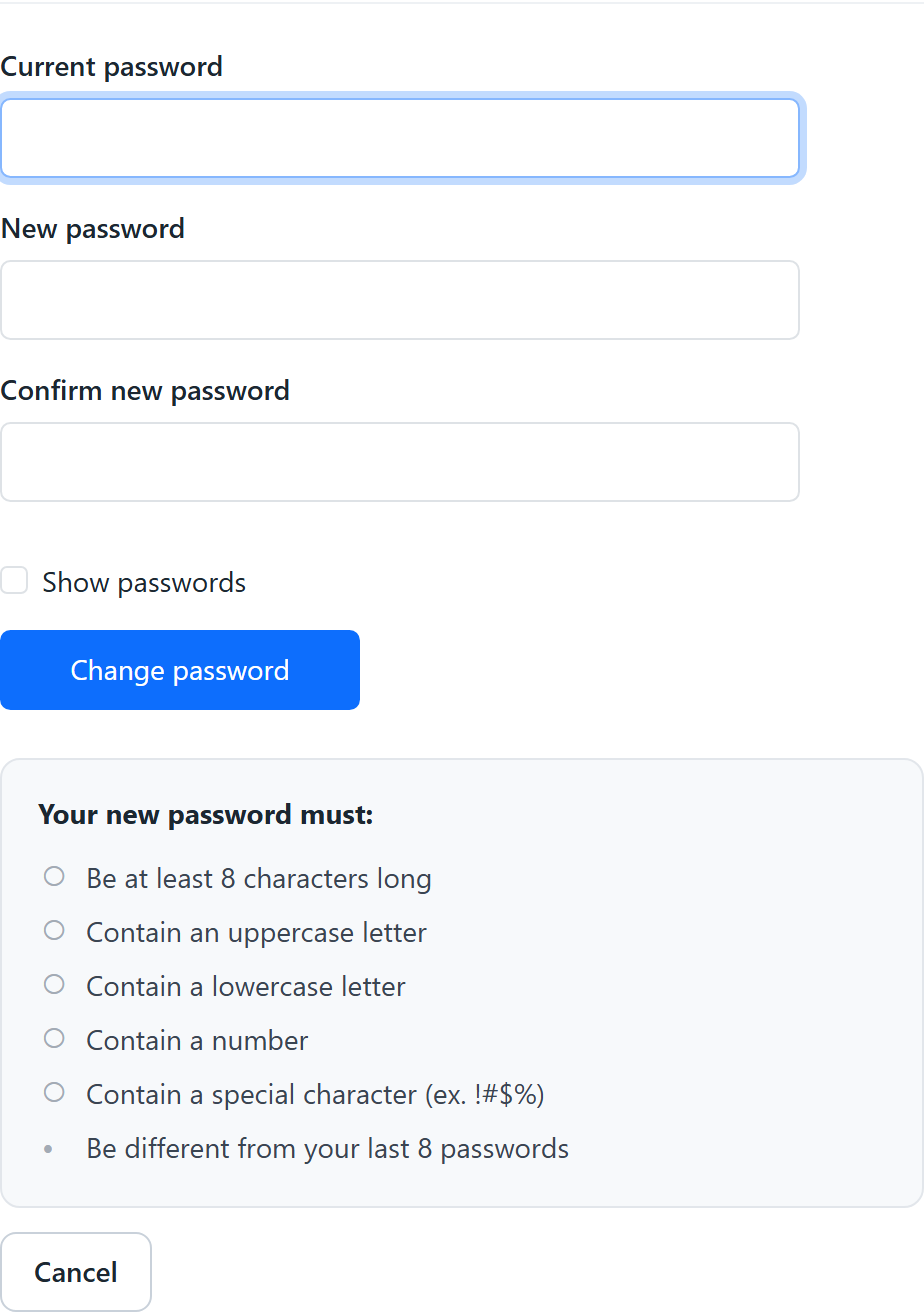
Click your name in the top bar, then Change password.
-
Enter your Current password, then your new password in New password and Confirm new password. Tick Show passwords to check what you typed.
-
Click Change password.
Timeouts and logging out
-
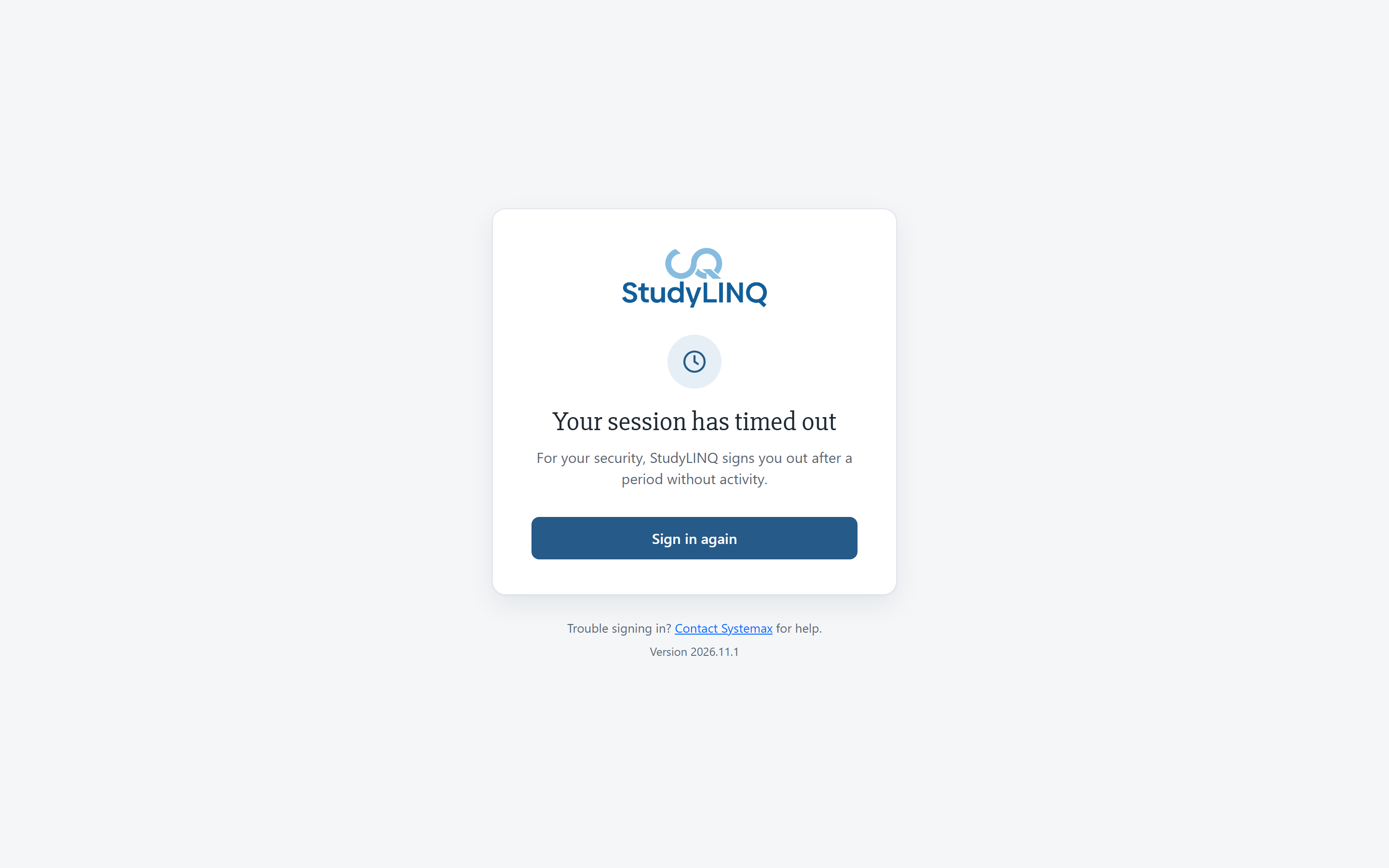
After 30 minutes without activity, StudyLINQ signs you out and opens the sign-in page. Sign in again to go back to the page you were on, in the same study.
-
If Your session has timed out opens while you are still signed in, the participant you had open was closed. Click Find a participant to load them again.
-
To log out, click Log out in the top right.