Study Dashboard
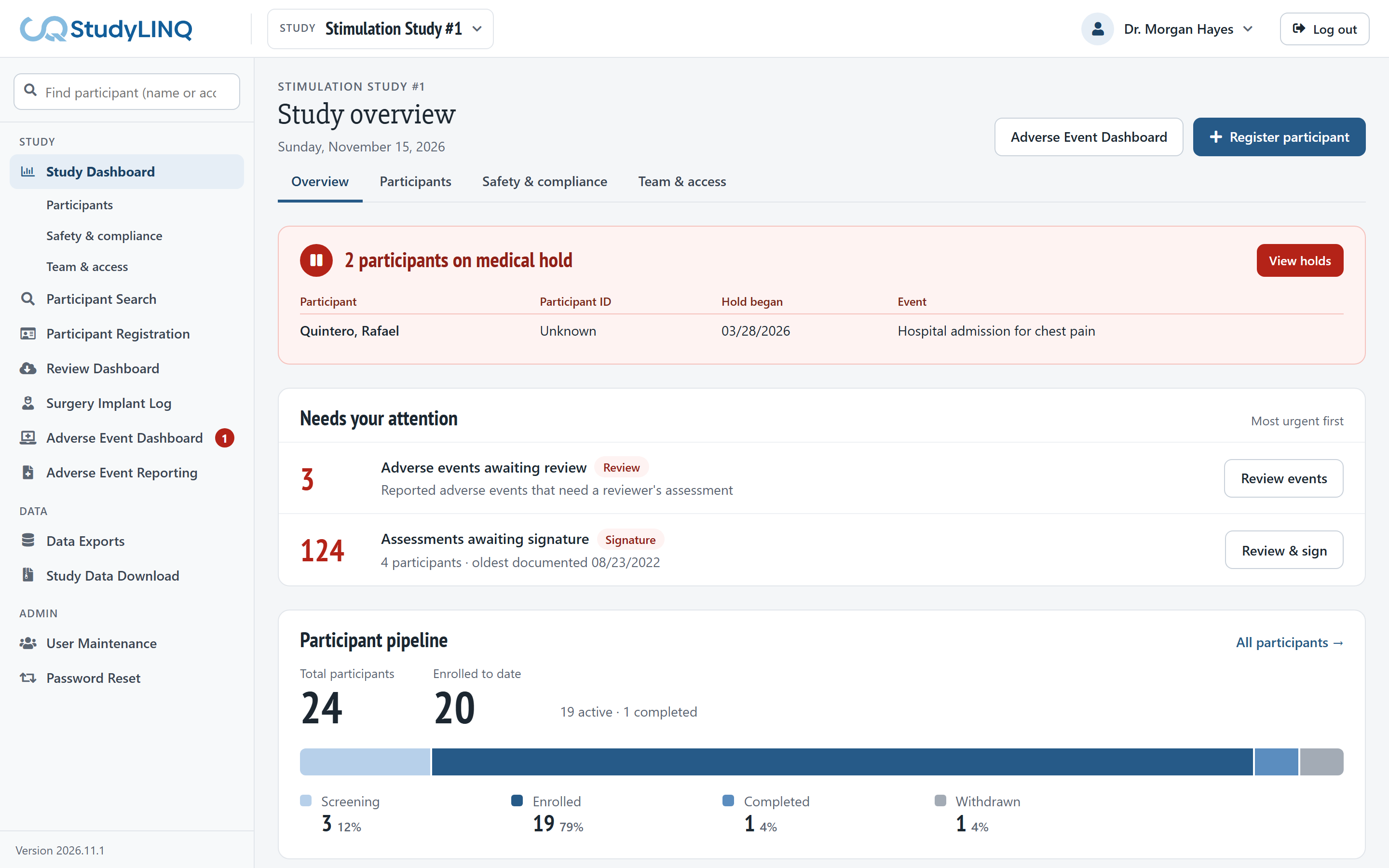
For users with Study Dashboard access in the selected study. Click Study Dashboard in the side menu. It has four pages; switch between them with the tabs at the top or the links under Study Dashboard in the side menu.
Overview
-
A banner shows how many participants are on medical hold. Click View holds for the list.
-
Needs your attention lists items to act on, each with a link to them.
-
Participant pipeline counts participants by status. Click All participants → for the full list.
-
Current visit shows participants by their latest documented timepoint.
-
Safety snapshot summarizes adverse events. Click Safety & compliance → for details.
Participants
-
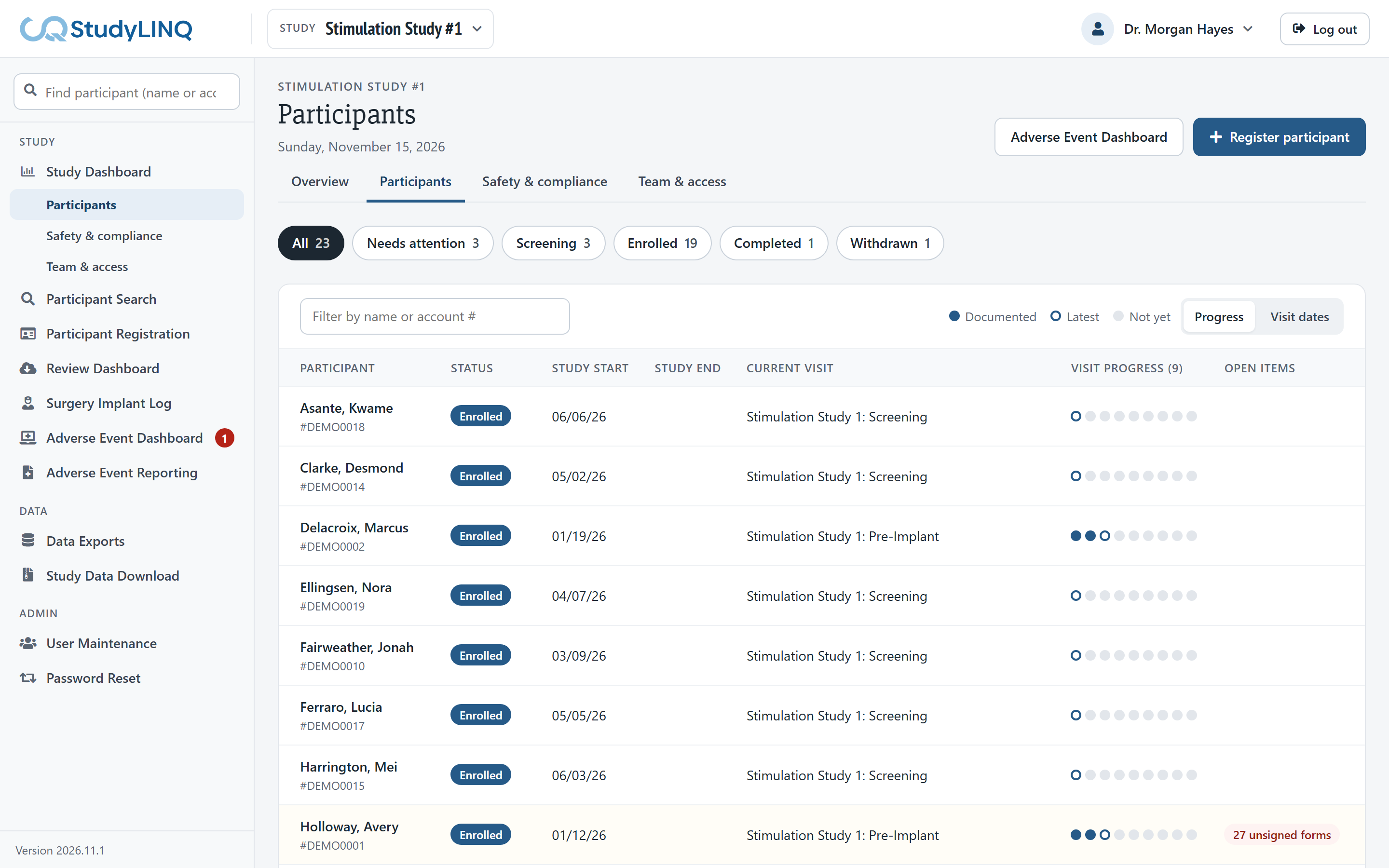
Use the buttons to show All, Needs attention, or participants with a particular status. Type in Search participants to find someone.
-
Switch the table between Progress (visit progress) and Visit dates. An asterisk (*) means documented but not yet signed.
-
Click a participant's name to load them.
-
Participants by group shows the number in each assigned group.
Safety & compliance
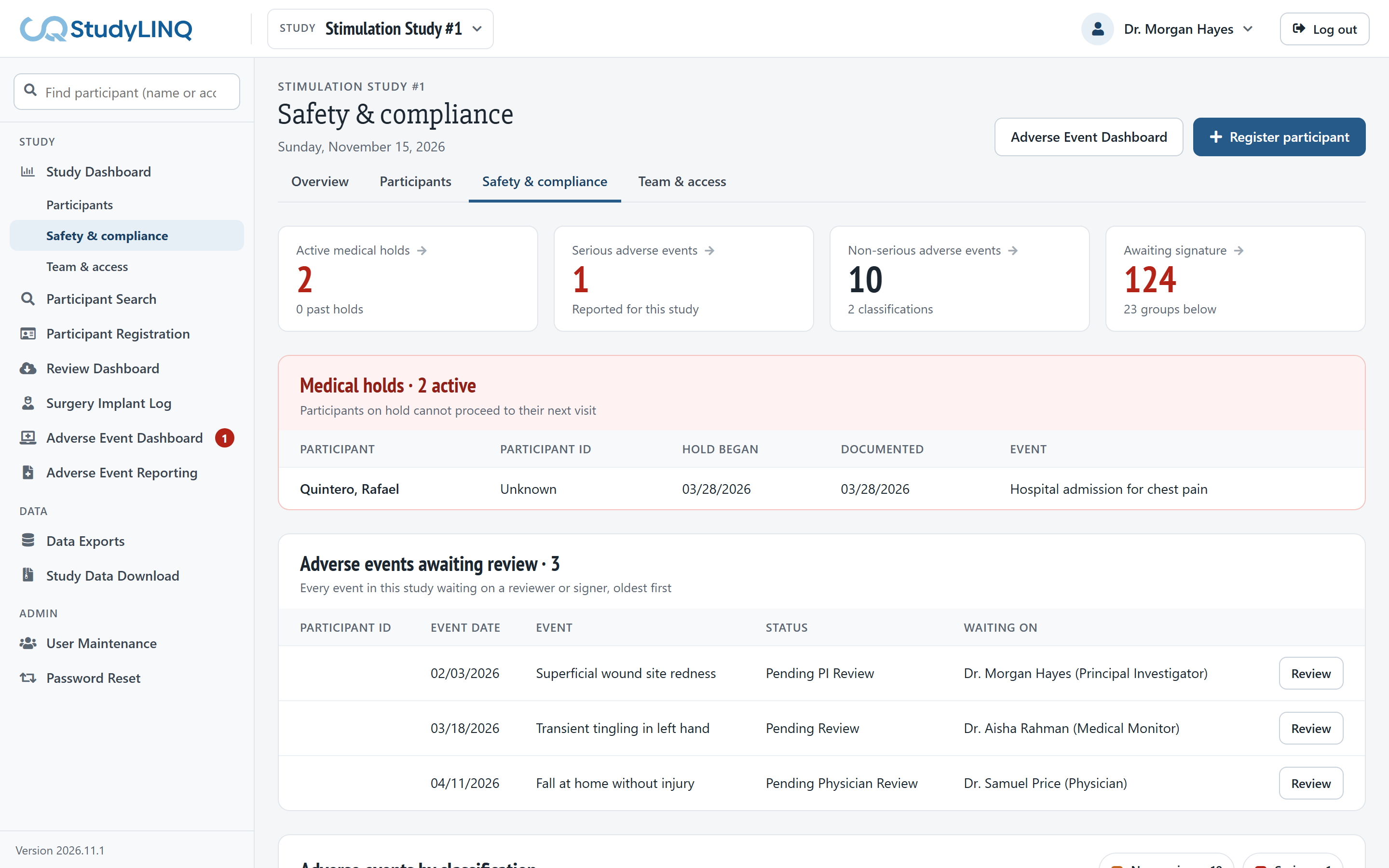
-
The cards at the top show active medical holds, serious and non-serious adverse events, and items awaiting signature. Click a card to jump to its list; the adverse event cards open the Adverse Event Dashboard (if you have access).
-
Medical holds lists active holds. Open Past holds for ended ones.
-
Adverse events awaiting review lists every event in the study that is waiting on someone, oldest first, with Waiting on. Click Review (or View) to open one.
-
Awaiting signature lists assessments that still need signatures, grouped by participant and form. Click Show forms for the forms, or Open participant to load the participant and sign.
-
Adverse events by classification charts events by CTCAE system. Turn serious and non-serious events on or off above it.
Team & access
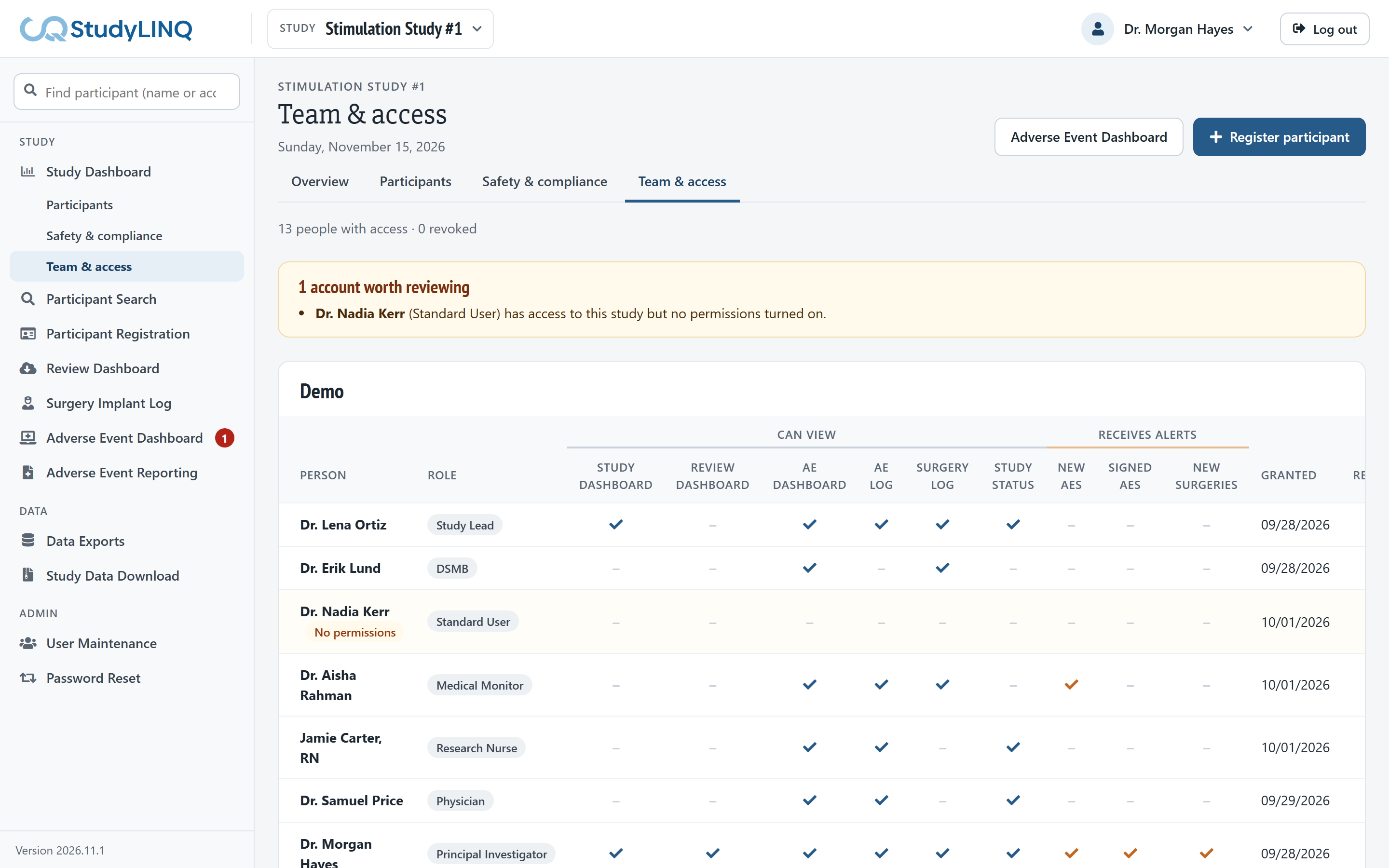
-
Lists everyone with access to the study, by facility, with what they can view and which email alerts they receive.
-
Accounts with access but no permissions turned on are listed at the top to review.
-
Turn on Show revoked access to include people whose access was removed.
To change someone's access, see Administration.
Study Safety
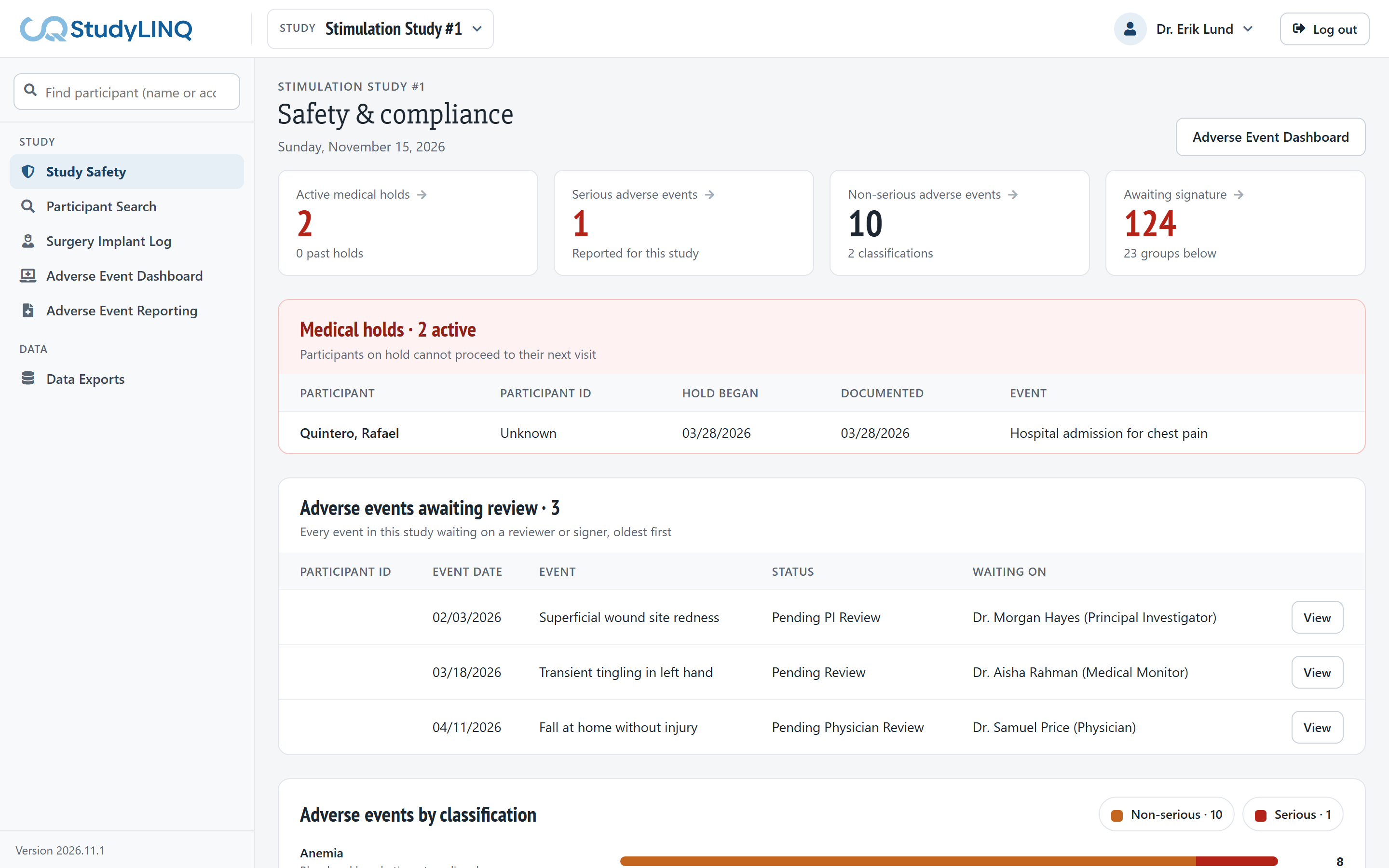
For the Lead Regulatory Coordinator, Medical Monitor, DSMB and Study Monitor roles without Study Dashboard access. It opens after you sign in, or click Study Safety in the side menu. It is the Safety & compliance page, view only: open adverse events with View.
Review Dashboard
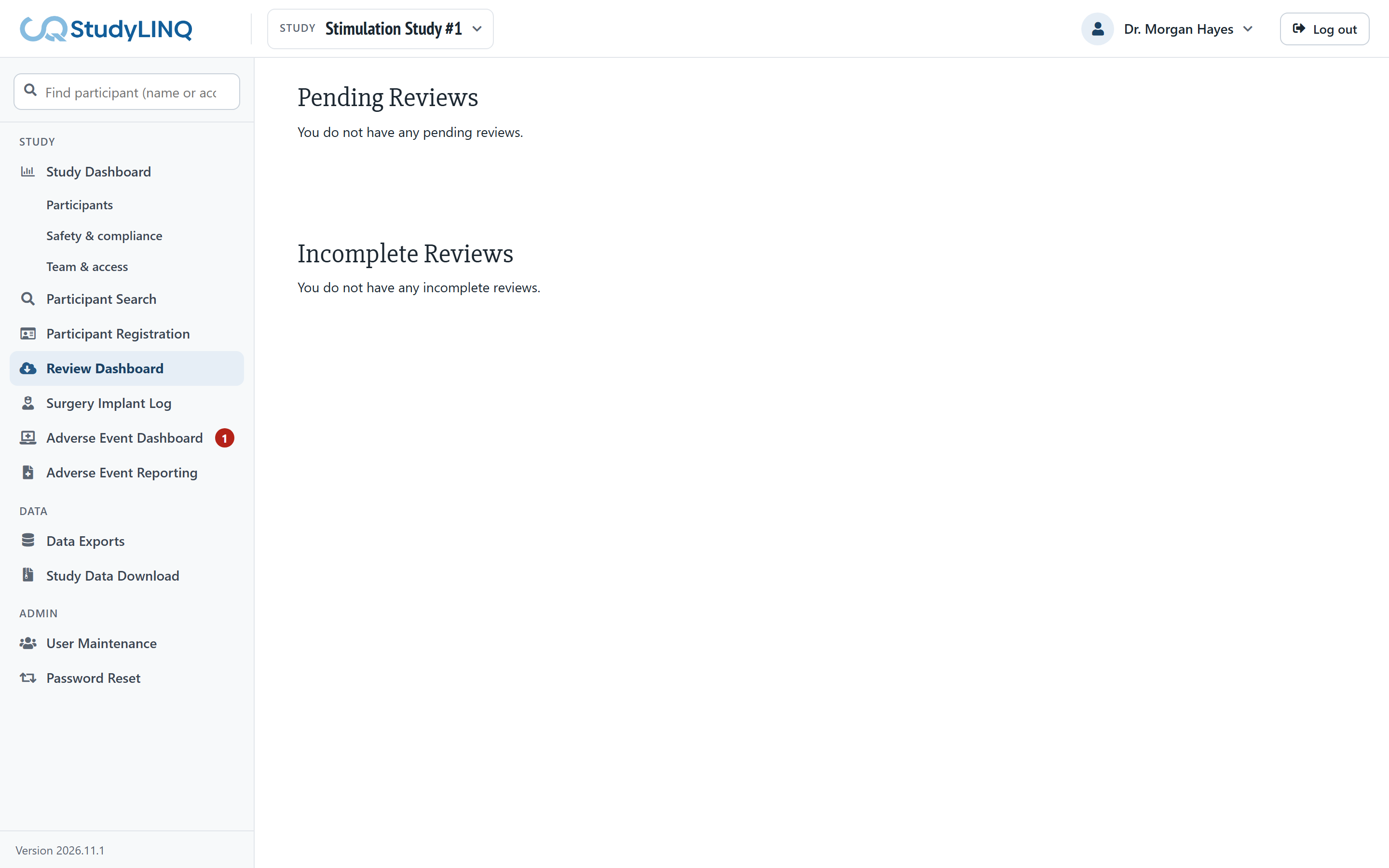
For users with Review Dashboard access. Click Review Dashboard in the side menu.
-
Pending Reviews – click Begin Next Review to start the next review.
-
Incomplete Reviews – click Open Review to continue one you started. When you have finished, click Complete Review on the form.