
Assessments are the forms completed for a participant. Load the participant, then click Assessments in the side menu.
Viewing a participant's assessments
-
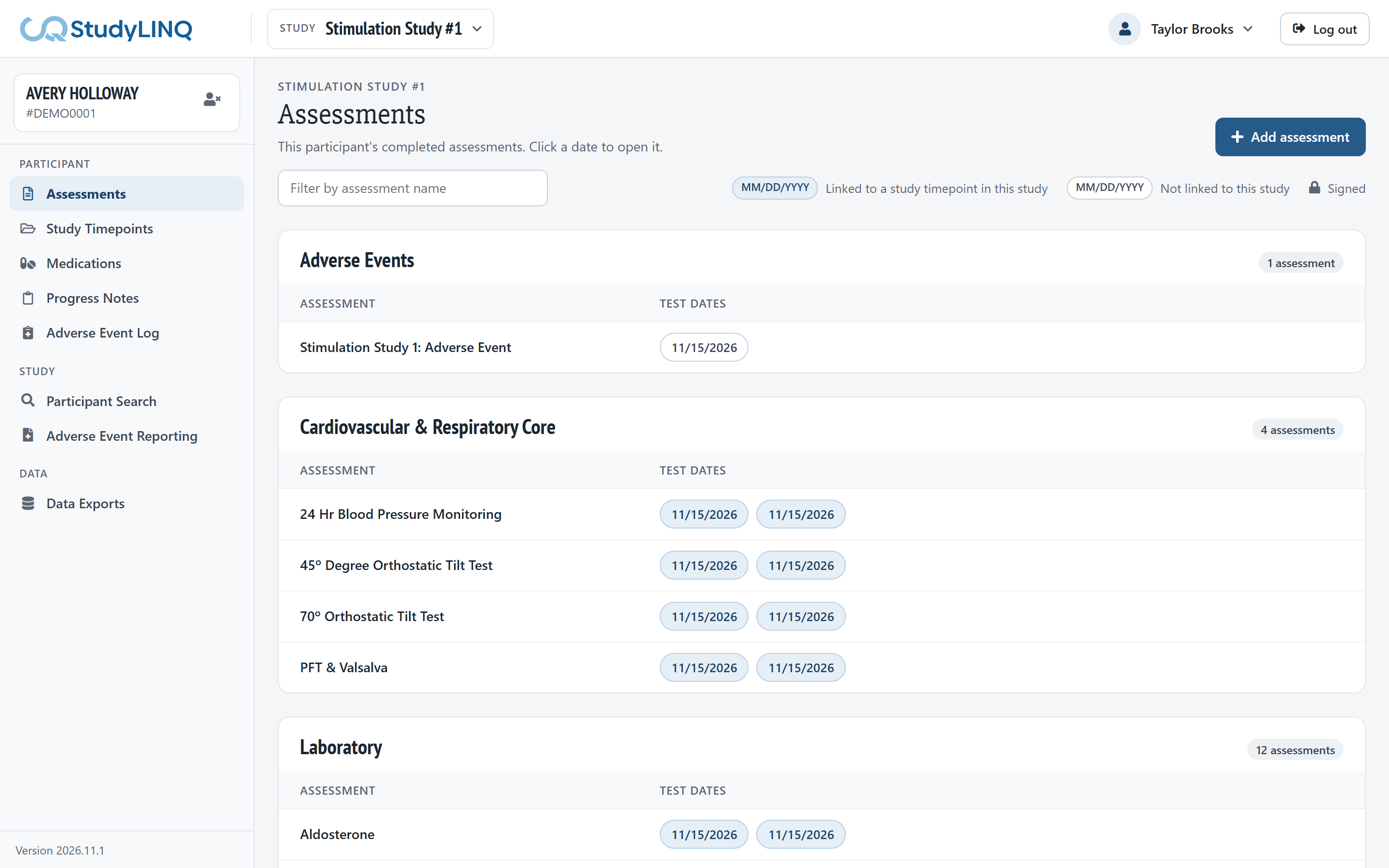
Assessments are grouped in a card for each folder. Each row shows an assessment and the dates it was completed.
-
Type in Filter by assessment name to show only matching assessments.
-
The key above the cards explains the dates: a highlighted date is linked to a study timepoint in this study, and a lock means the assessment is signed.
-
Click a date to open that assessment.
Adding an assessment
-
Click Add assessment.
-
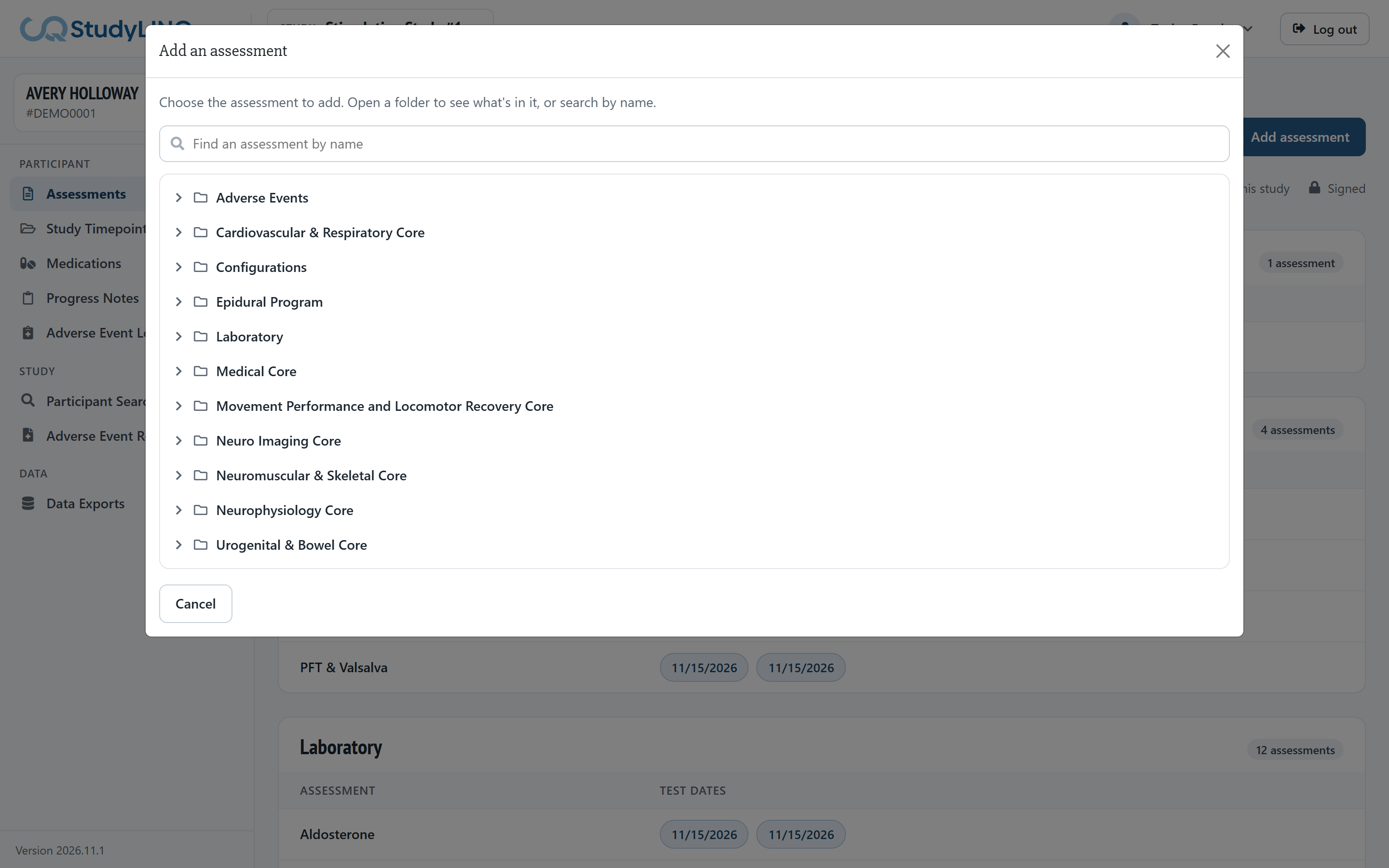
Open a folder, or type the name in Find an assessment.
-
Click the assessment. The blank form opens.
-
Fill in the form. To copy the answers from the participant's last completed copy of this form, click Pull Last Values Forward, then check each answer.
-
Click Save Changes.
If a required answer is missing, a message lists what to fix. Fields marked This field will be calculated are filled in for you.
Changing an assessment
-
Click the assessment's date to open it.
-
Make your changes and click Save Changes. To close without saving, click Cancel Changes or Close.
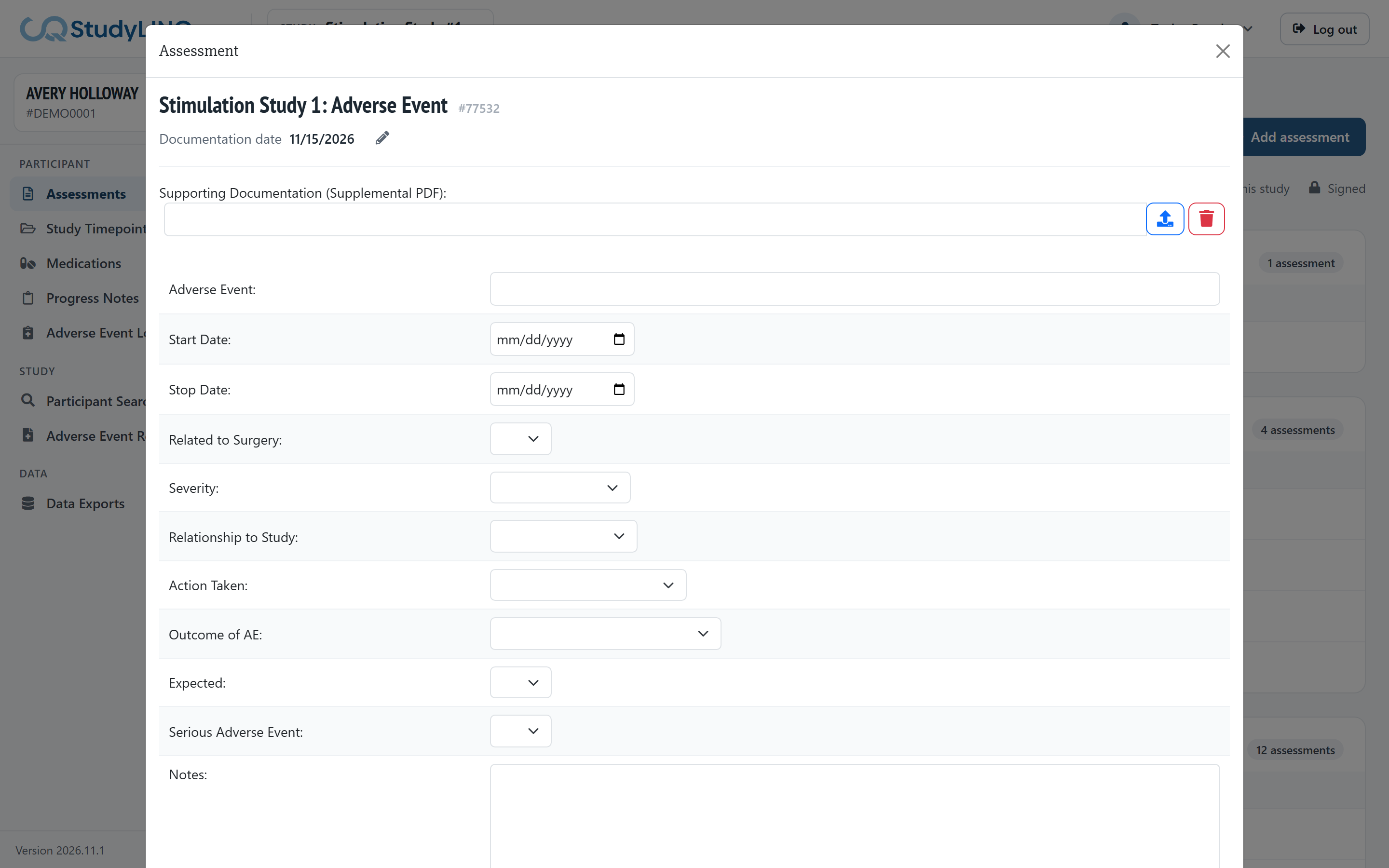
To change the documentation date, click the pencil next to Documentation date, choose the date and save it. StudyLINQ asks whether to change the form's Date of Test to match.
A signed assessment can't be changed.
Signing an assessment
-
Open the assessment and complete it.
-
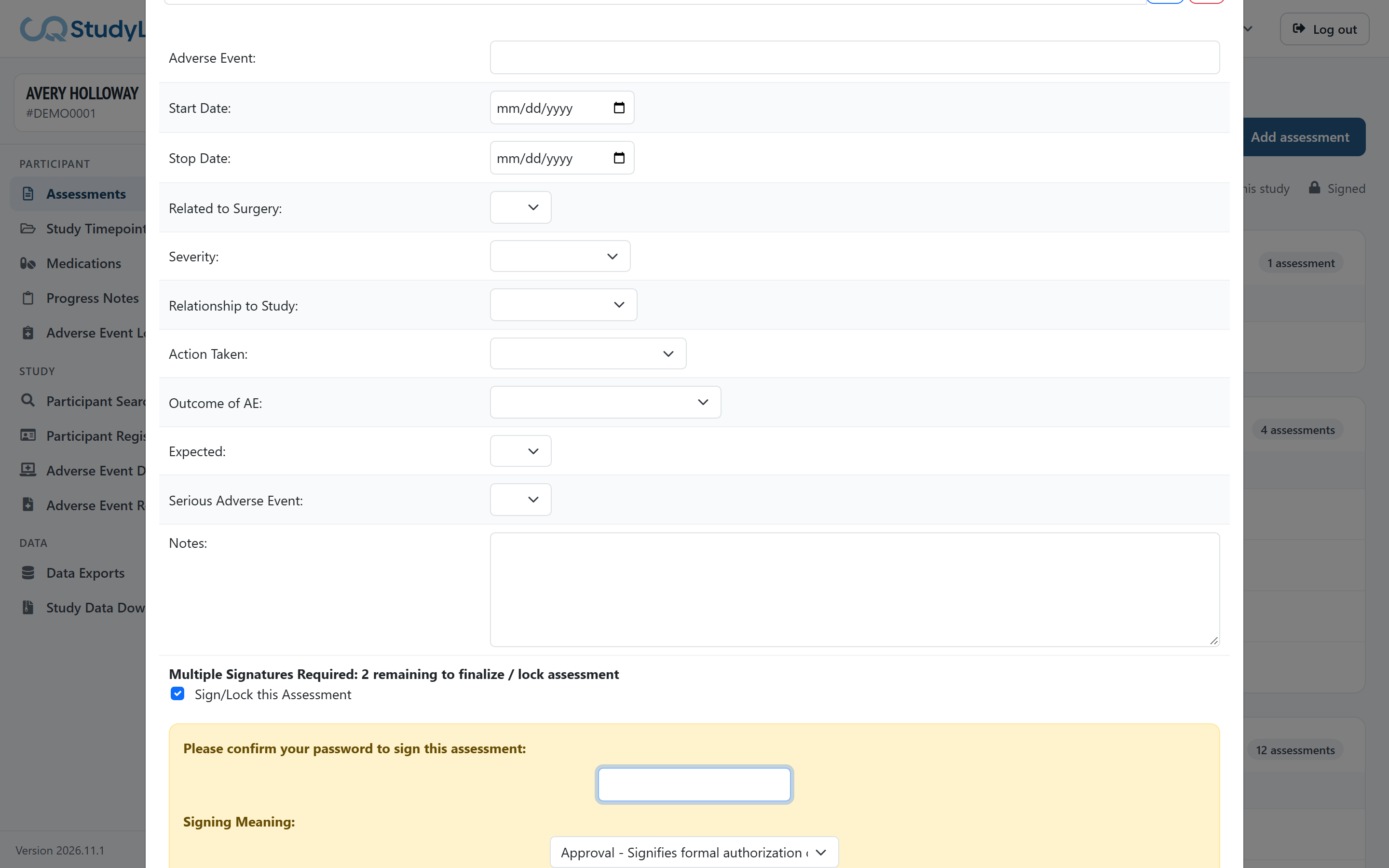
Tick Sign/Lock this Assessment.
-
Under Please confirm your password to sign this assessment, enter your password.
-
Check the Signing Meaning, and change it if it doesn't describe your signature:
-
Approval – formal authorization or agreement with the contents
-
Review – you have inspected, read or evaluated the record
-
Authorship – you created, drafted or compiled the record
-
Verification – data, calculations or steps have been checked and confirmed
-
Responsibility – accountability for the accuracy, execution or compliance of the activity
-
Release – authorization to move to the next stage
-
Witnessed – an action was observed or done under the direct oversight of a second reviewer
-
-
Click Save Changes.
21 CFR Part 11: your password and signing meaning are required so each electronic signature is linked to you and states what it means (§11.50, §11.200). The signature is stored with your name, the date and time, and the meaning.
Forms that need more than one signature
Some forms need signatures from several roles (for example a physician and the P.I.). The form shows Multiple Signatures Required: n remaining to finalize / lock assessment. Each person signs the same way as above; StudyLINQ records the signature for your role in the study. The assessment locks after the last signature.
Previewing a report
-
Open the assessment.
-
Tick Include Medication List to add the participant's medications (optional).
-
Click Save Changes and Preview Report. The report opens in a new tab.
Uploaded files
Some forms have file fields (for example Supplemental Data File). Click the upload button next to the field to attach a file, and View File to open it in a new tab. You must be signed in to open a file.
Deleting an assessment
-
Open the assessment.
-
Click Delete this Assessment, then Delete assessment to confirm.
An assessment that is linked to a study timepoint can't be deleted. Remove it from the study timepoint first (see Study Timepoints).