
Data Exports
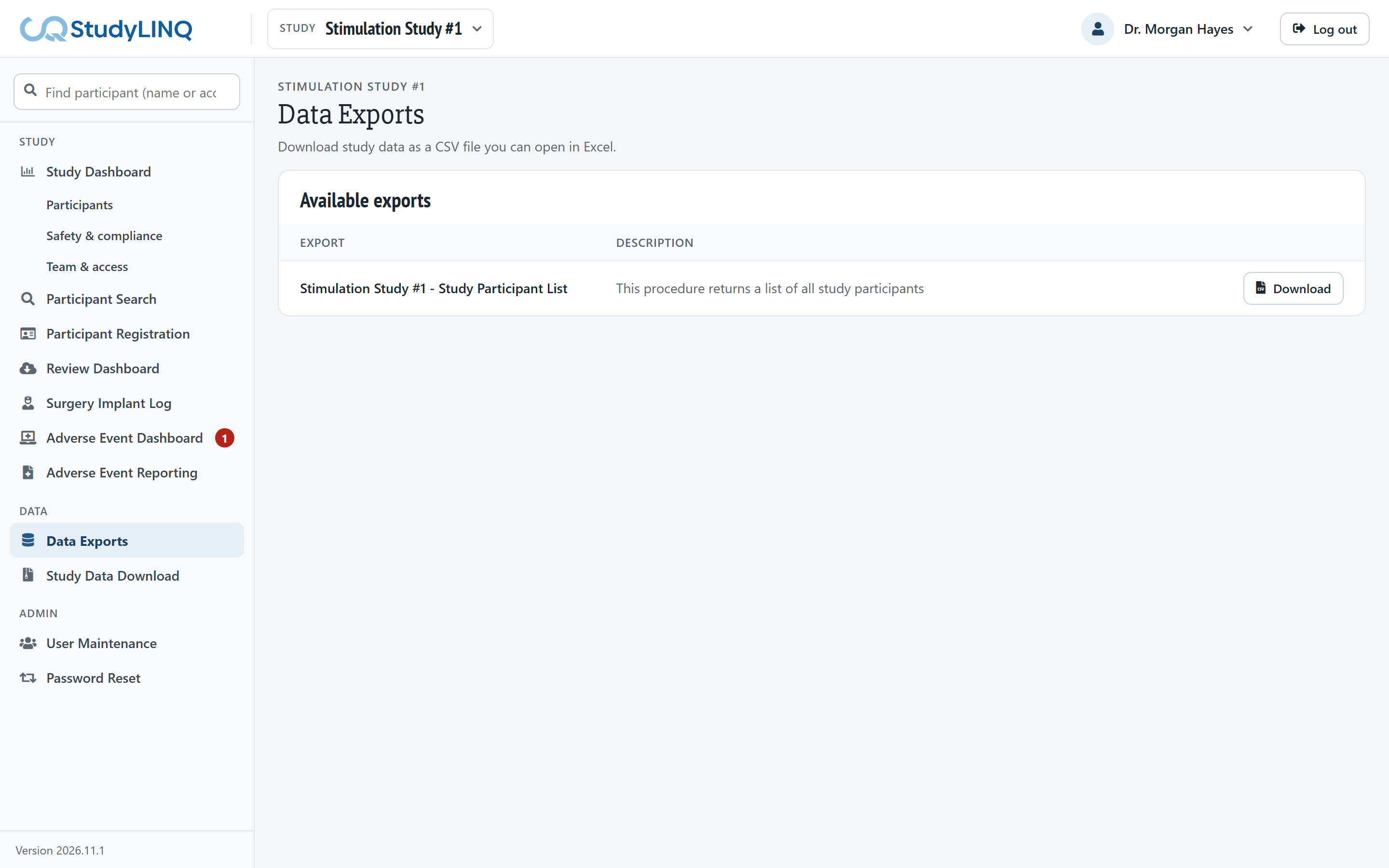
Click Data Exports in the side menu. The exports for the selected study are listed.
-
Find the export under Available exports.
-
Click Download. A CSV file downloads; open it in Excel.
Study Data Download
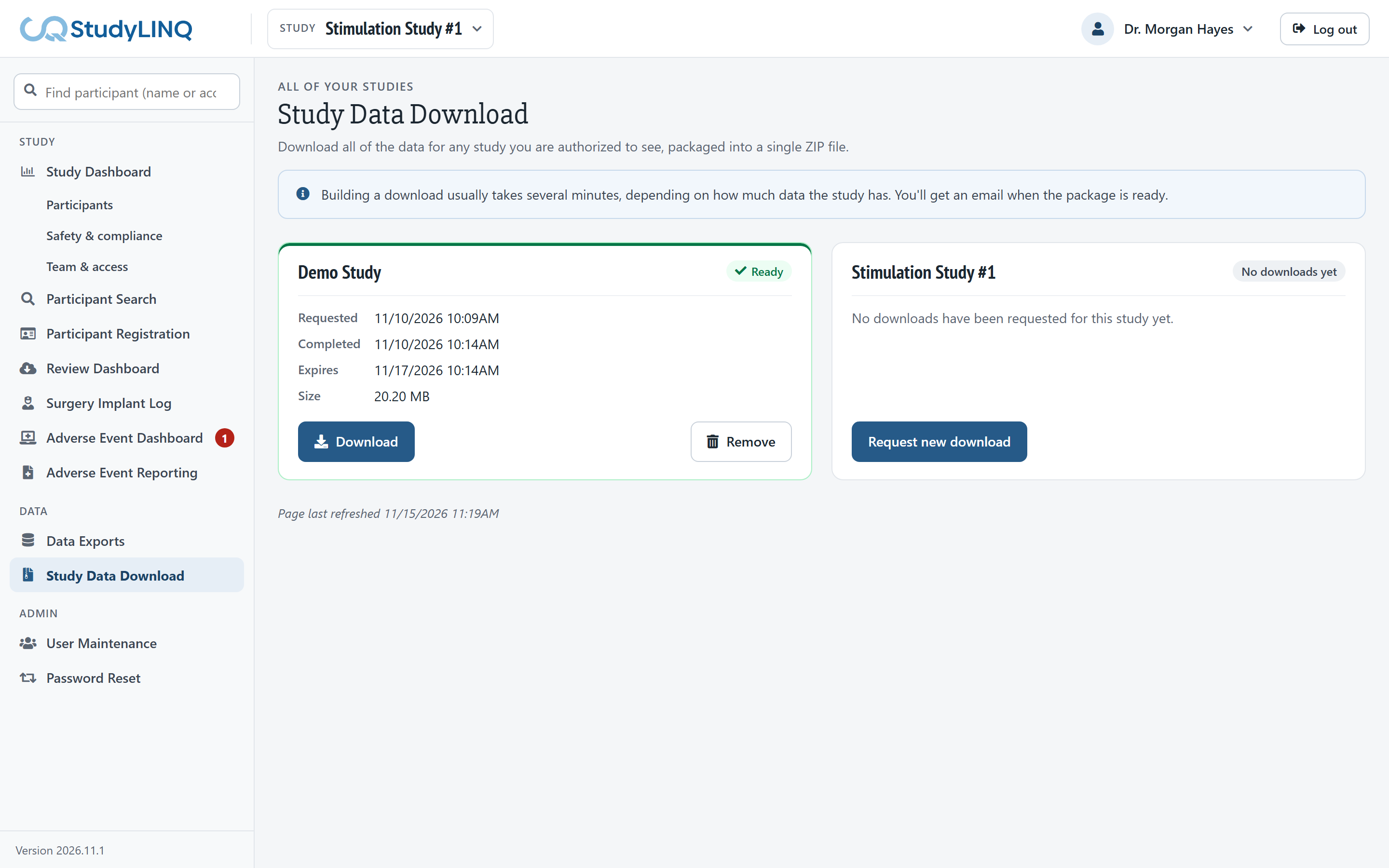
Downloads all of a study's data in one ZIP file: the Study Participant List, Progress Notes, Adverse Events with their history, and Assessments. Click Study Data Download in the side menu. There is a card for each study you can see.
Requesting a download
-
On the study's card, click Request new download.
-
Wait for the status to change from Queued and Building to Ready. This usually takes several minutes. The page refreshes every minute, and you get an email when it's ready.
-
Click Download to save the ZIP file.
-
A download expires after a while. When the status shows Expired, request a new one.
-
If the status shows Failed, request a new one. If it fails again, contact Systemax.
-
To delete a download, click Remove, then Remove download.