
Load the participant, then click Medications in the side menu.
Viewing medications
-
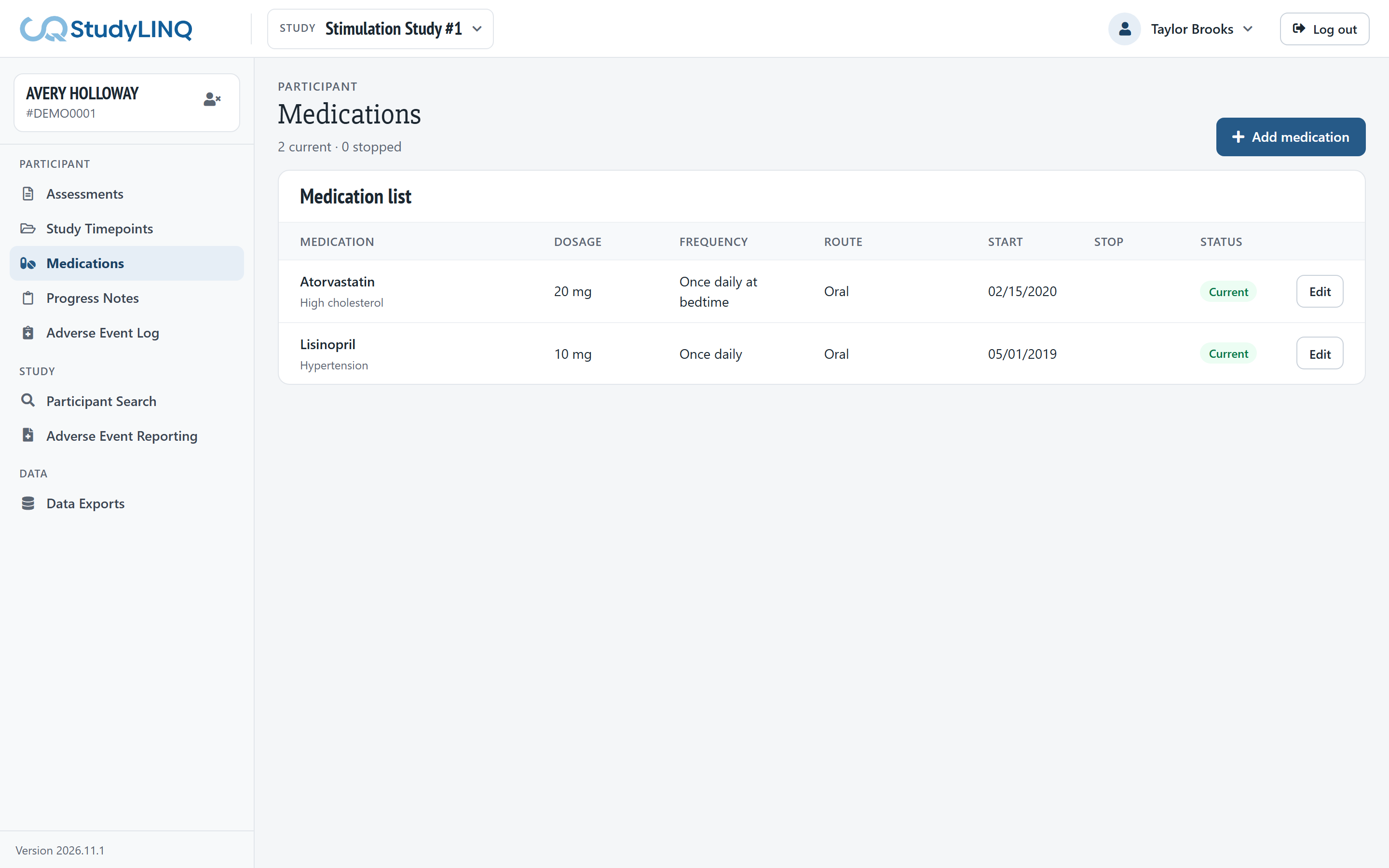
The heading shows how many medications are current, stopped and removed.
-
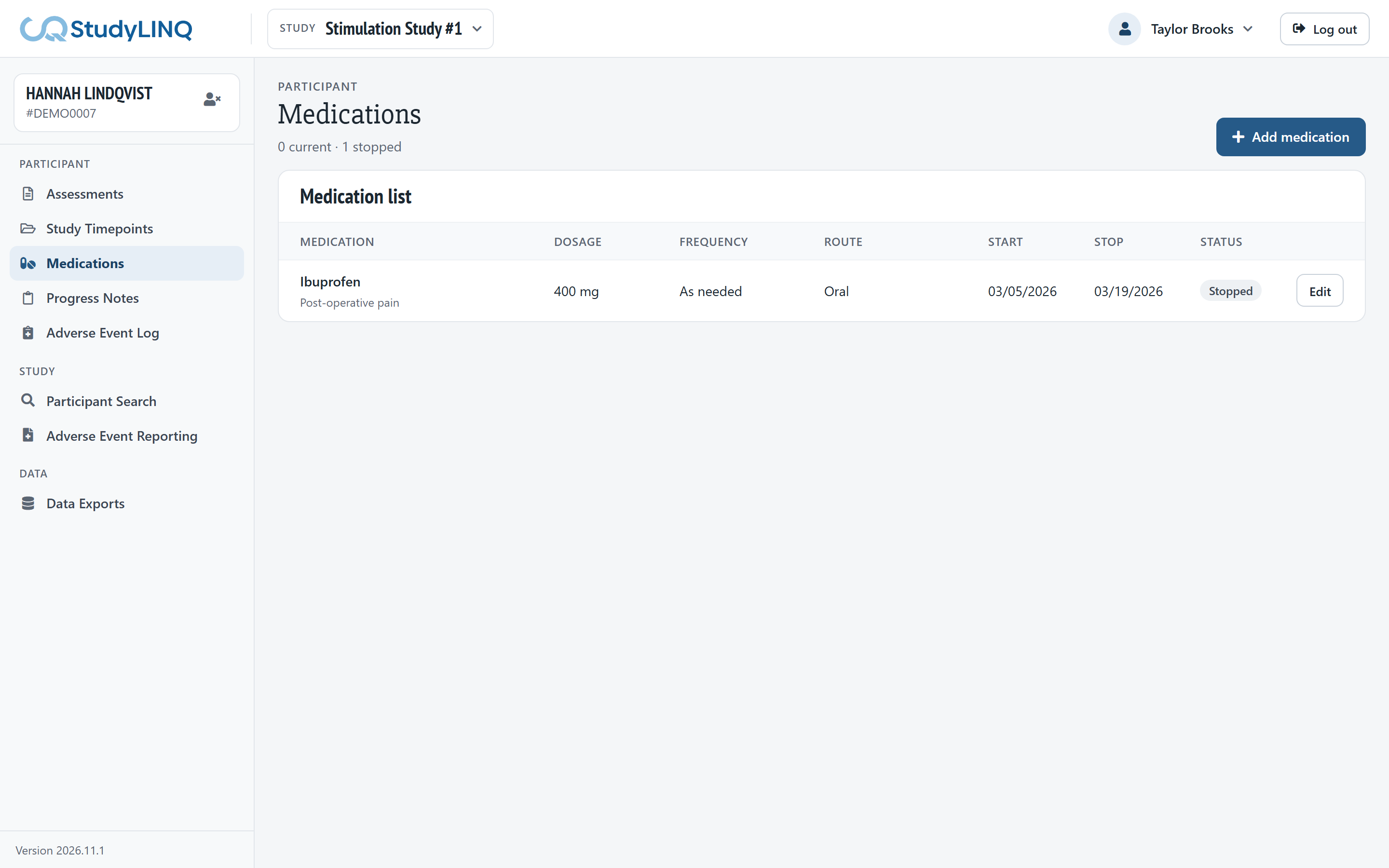
Status shows whether each medication is current or stopped. A medication with a stop date of today or earlier is stopped.
-
To see removed medications, turn on Show removed medications. The switch shows only when there are removed medications.
Adding a medication
-
Click Add medication.
-
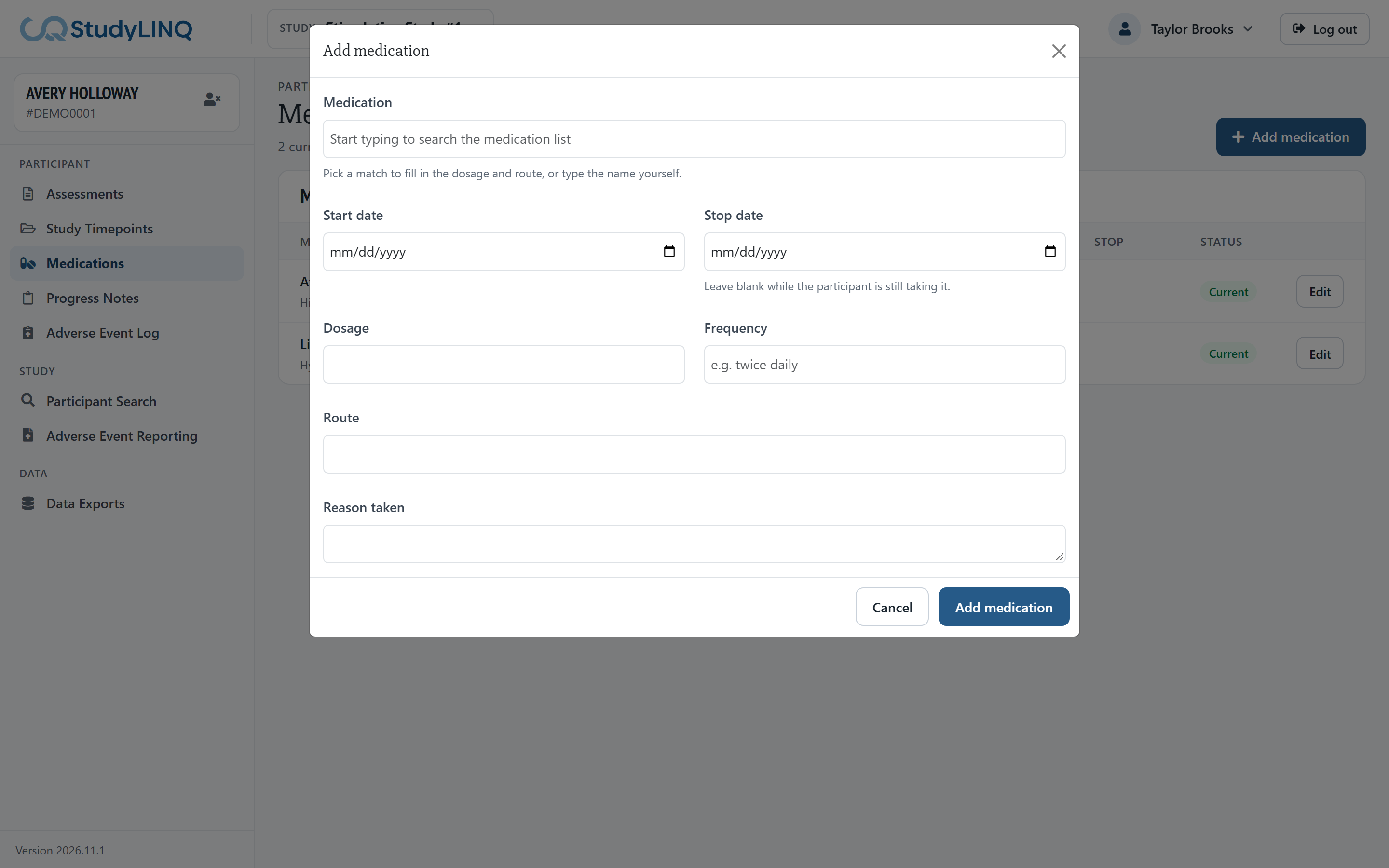
Start typing the name in Medication and choose it from the list. The name is required.
-
Enter the Start date, and the Stop date if it has stopped.
-
Enter the Dosage, Frequency, Route and Reason taken.
-
Click Add medication.
Changing or stopping a medication
-
Click Edit on the medication's row.
-
Make your changes. To stop it, enter the Stop date.
-
Click Save changes.
Removing a medication entered by mistake
-
Click Edit on the medication's row.
-
Click Remove medication, then Remove medication again to confirm.
To bring it back, turn on Show removed medications, click Edit on it and click Restore medication.