
Load the participant, then click Progress Notes in the side menu.
Viewing progress notes
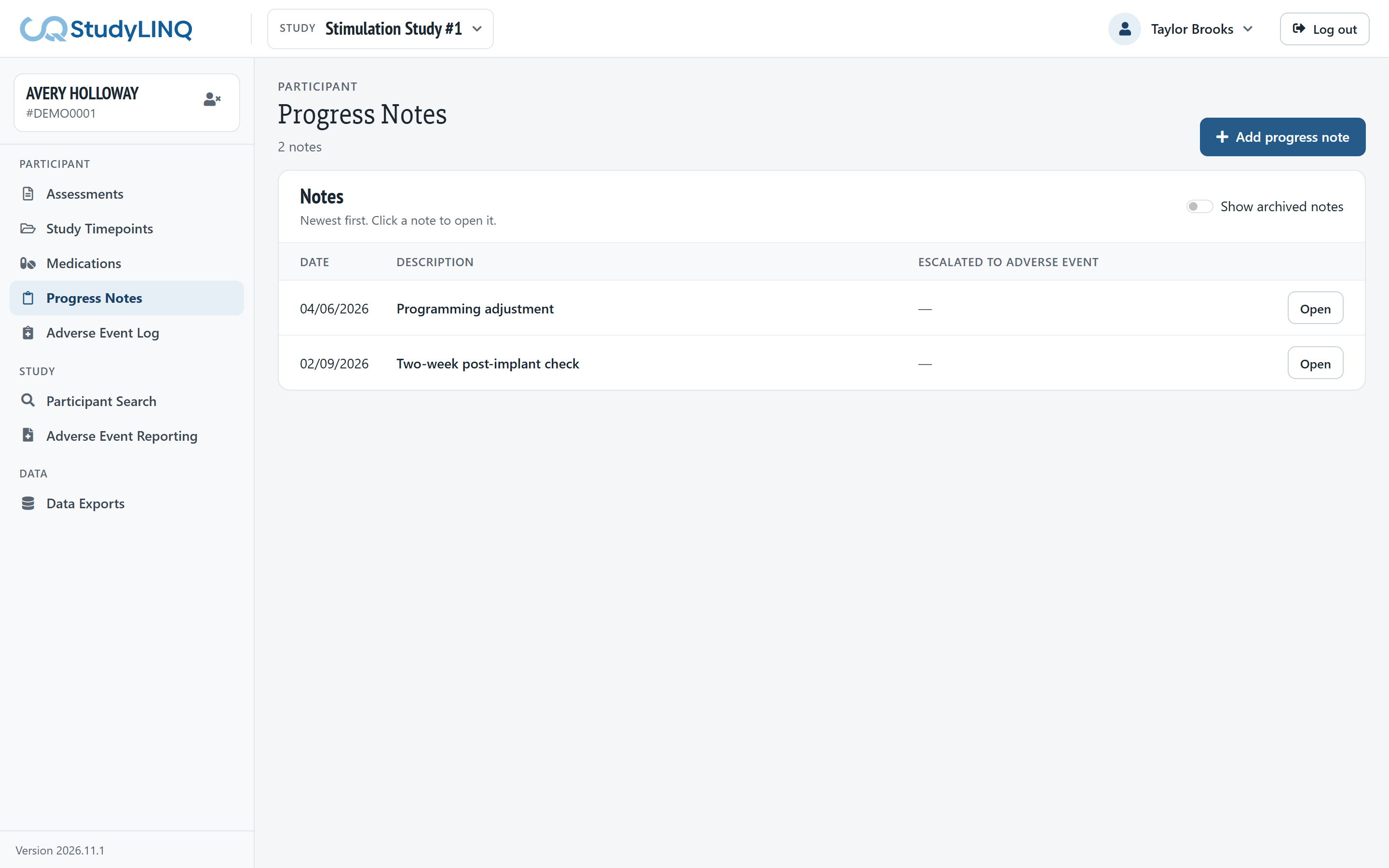
-
Notes are listed newest first. Escalated to adverse event shows the adverse event a note is linked to.
-
Click a note to open it.
-
To see archived notes, turn on Show archived notes.
Adding a progress note
-
Click Add progress note.
-
Enter the Date, a short Description and the Notes.
-
Leave Adverse event as Do not escalate, unless the note describes an adverse event (see below).
-
Click Save changes.
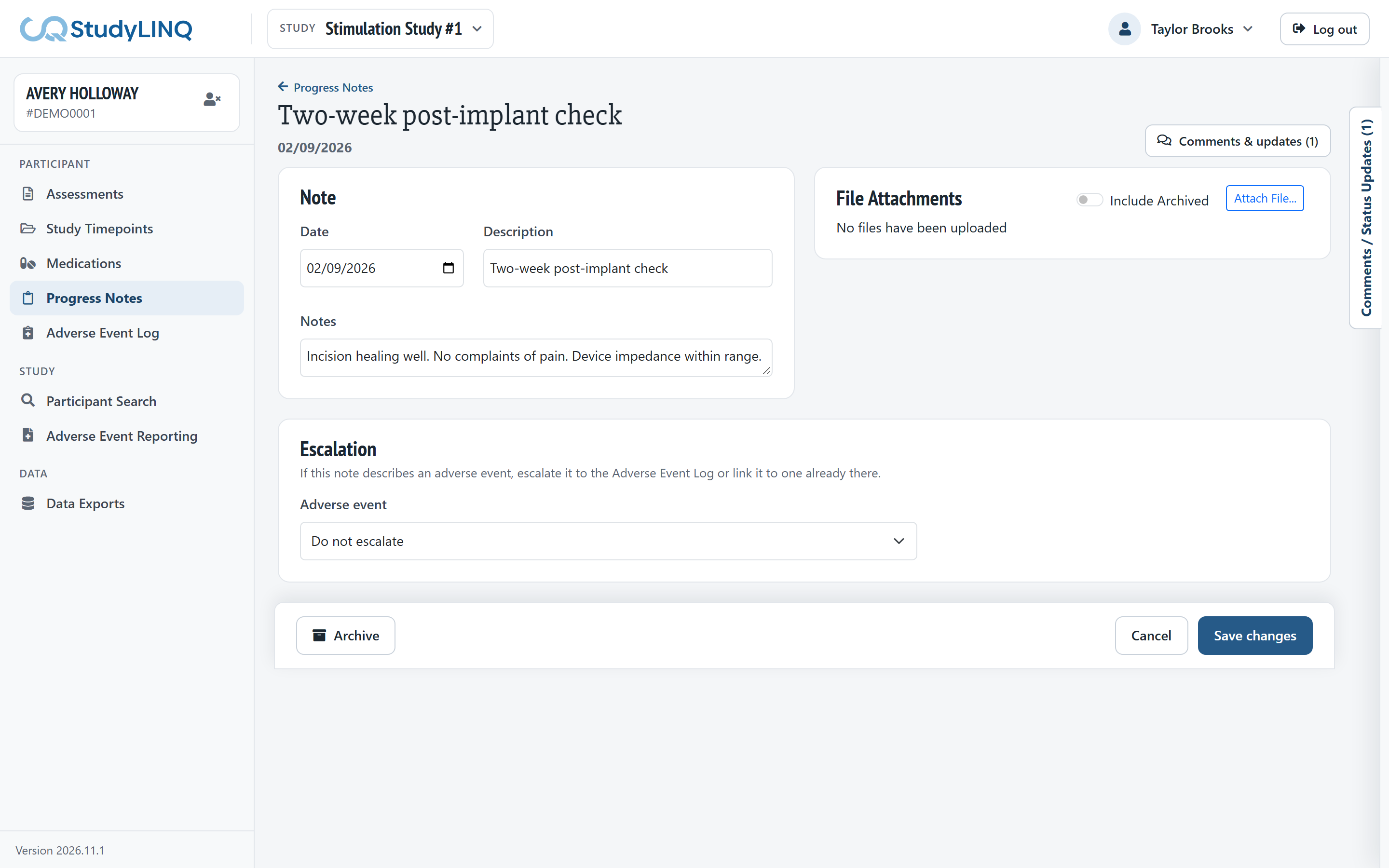
To attach a file to the note, use Attach File… under File Attachments.
Escalating a note to an adverse event
-
Open or add the note.
-
Under Escalation, choose in Adverse event:
-
Escalate as a new adverse event – enter the Event date and Summary for the new event, or
-
an existing adverse event – events still in progress are marked In progress; choosing a signed one creates a follow-up.
-
-
Click Save and escalate (or Save changes for an existing event).
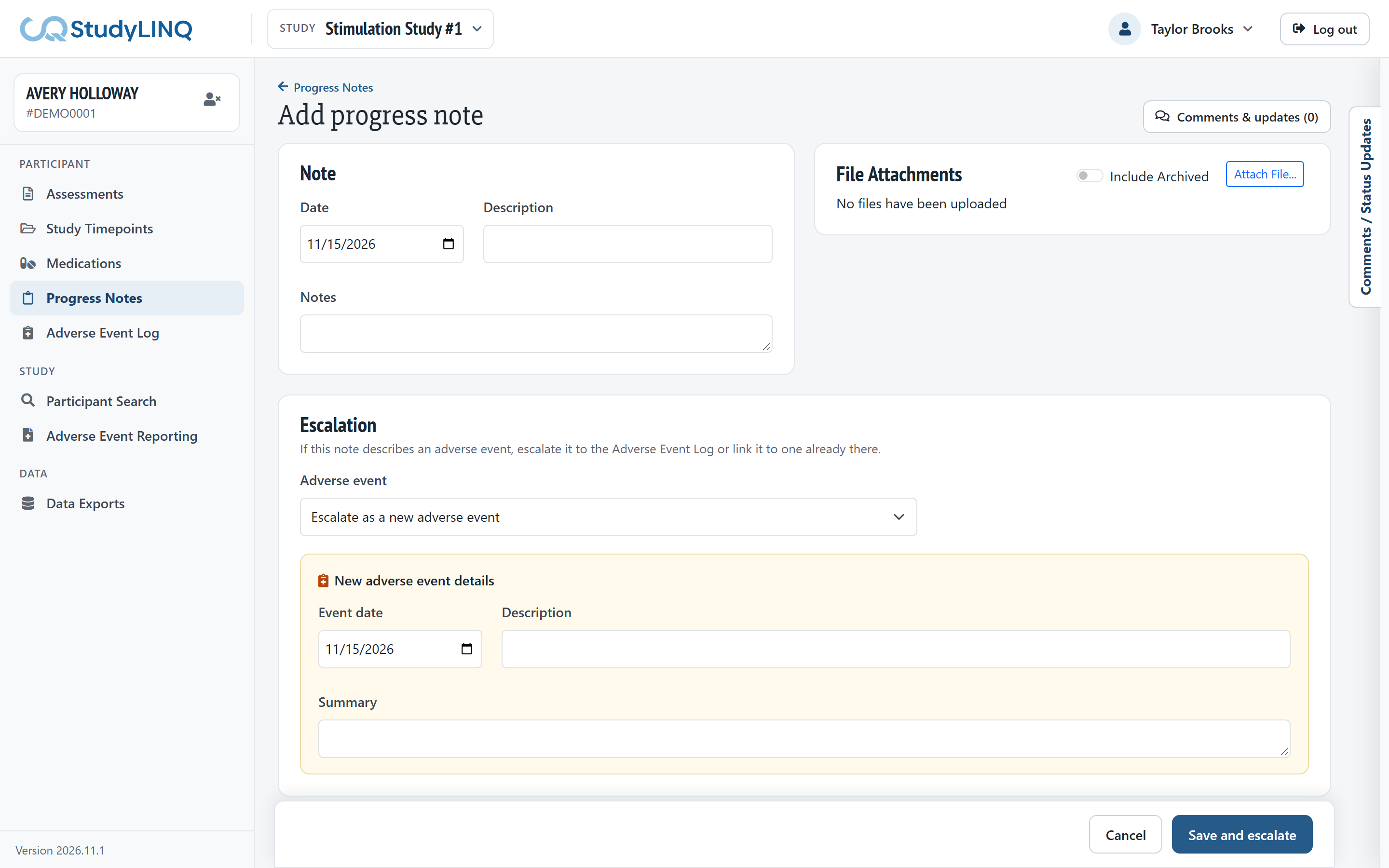
The note stays linked to the adverse event when you change and save it later. To complete the new adverse event, see Adverse events.
Archiving a note
-
Open the note.
-
Click Archive and confirm.
An archived note can't be changed. To restore it, turn on Show archived notes, open it and click Restore.