Adverse Event Dashboard
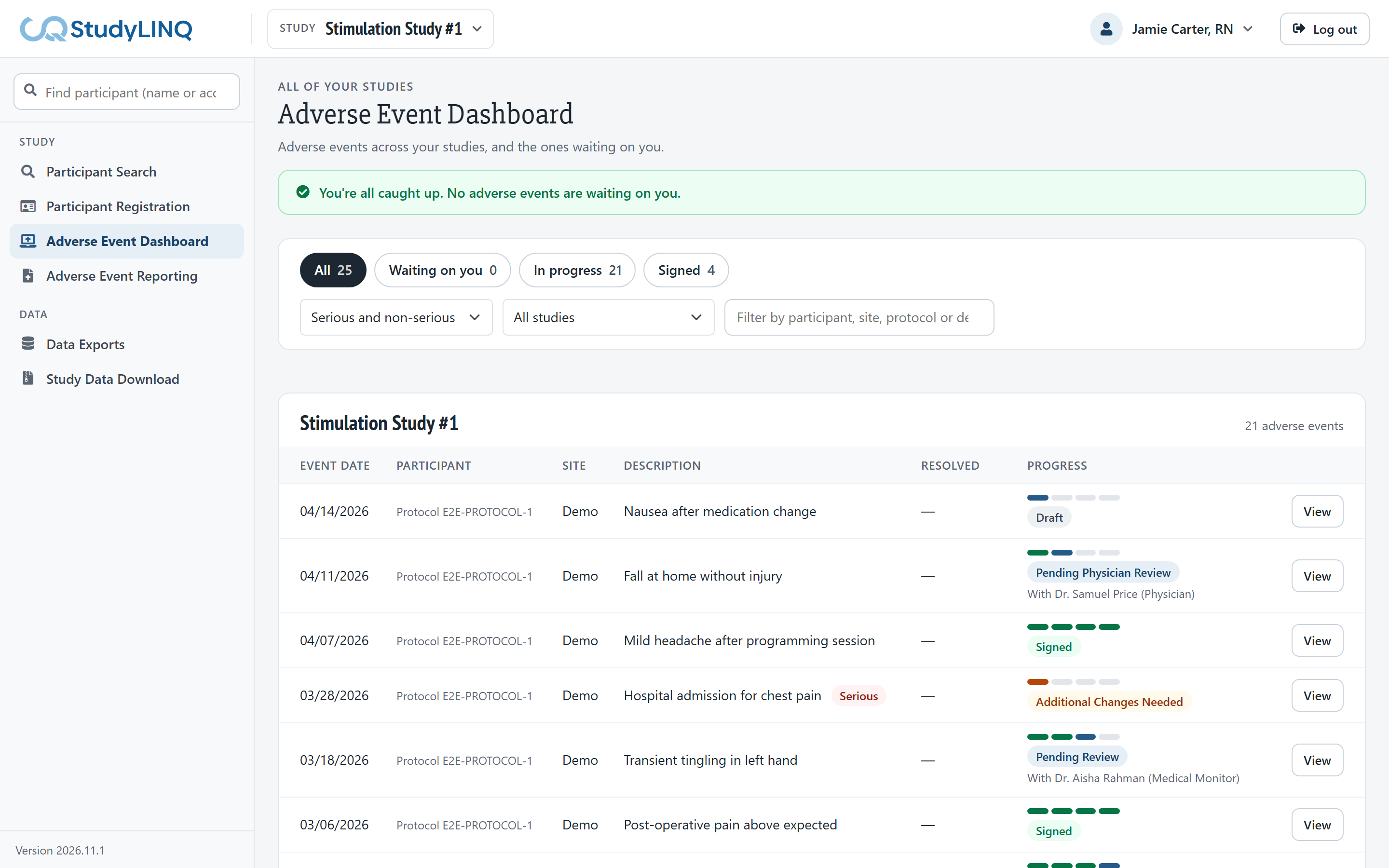
The Adverse Event Dashboard lists the adverse events in all of your studies, and the ones waiting on you. Click Adverse Event Dashboard in the side menu. The red number next to it is how many events are waiting on you.
-
The card at the top lists the events waiting on you. Click Open to work on one.
-
Use the buttons to show All, Waiting on you, In progress or Signed events.
-
Narrow the list with Seriousness (serious, non-serious or both), Study, or by typing in Filter adverse events.
-
Events are grouped by study. Progress shows each event's step. Click View to open an event that isn't waiting on you.
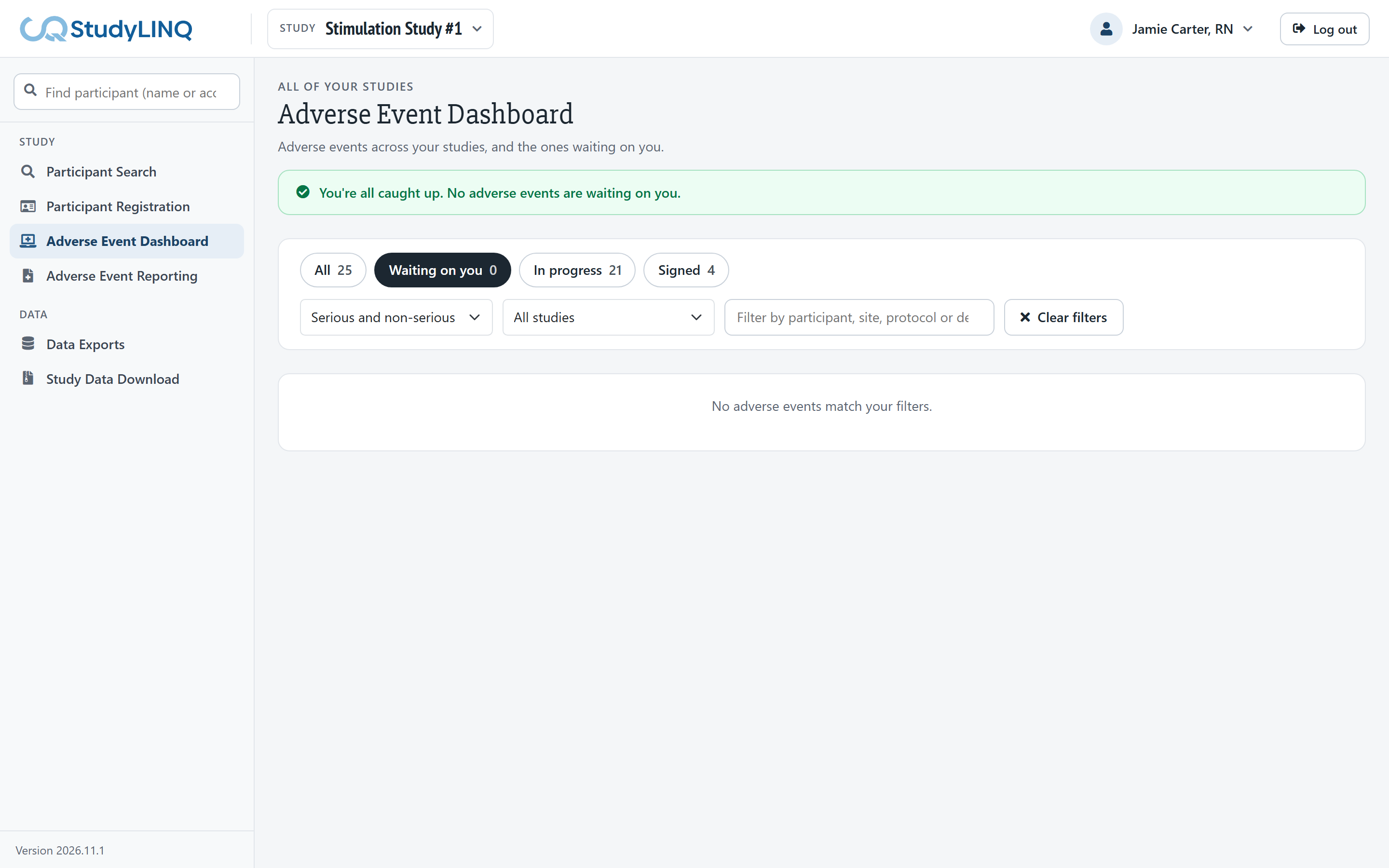
The serious and non-serious event cards on Study Safety open this dashboard with that filter set. To go back to every event, clear the filters.
Adverse event summary reporting
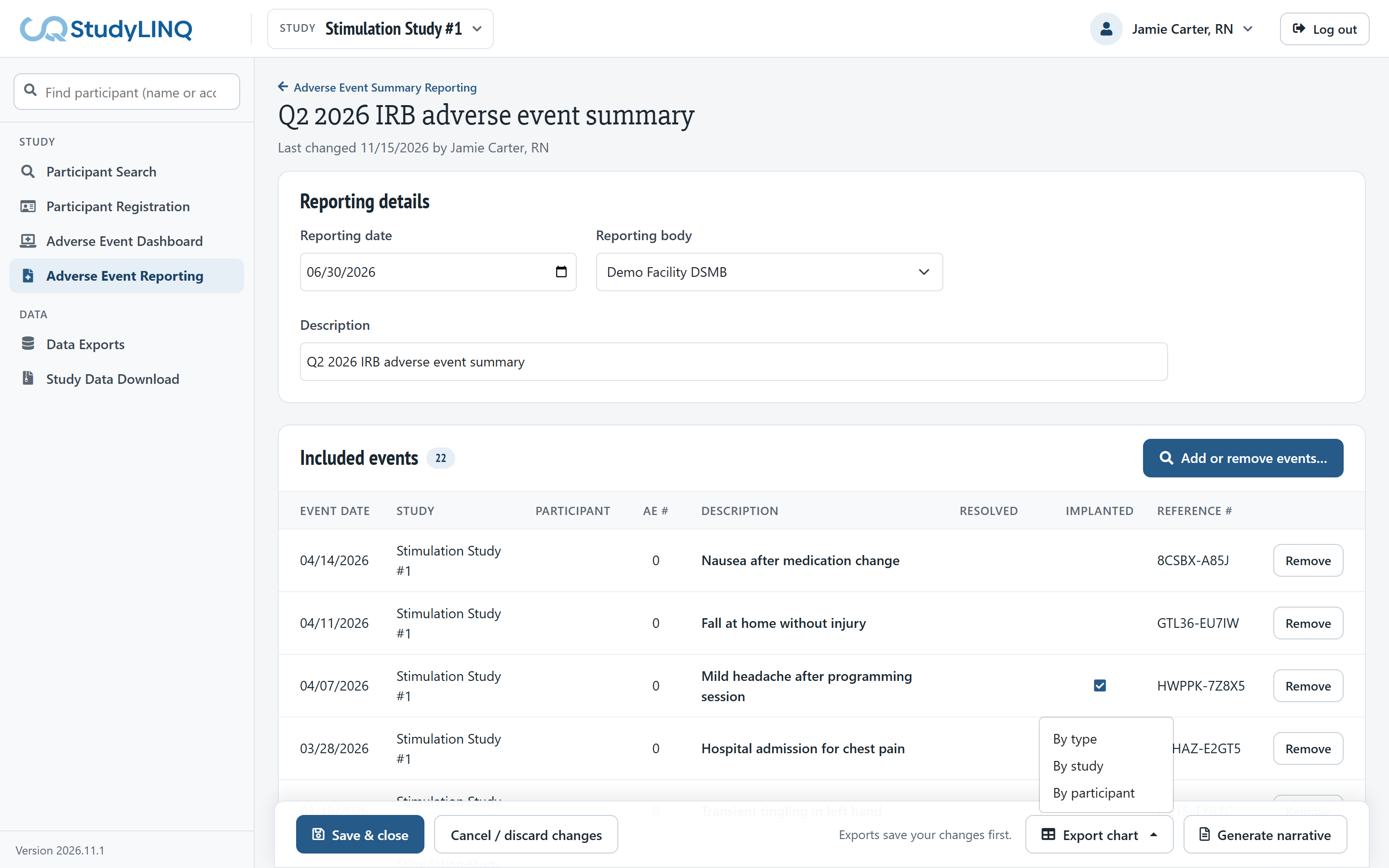
A summary reporting groups adverse events for a reporting body (for example an IRB or DSMB), so you can export a chart or a narrative. Click Adverse Event Reporting in the side menu.
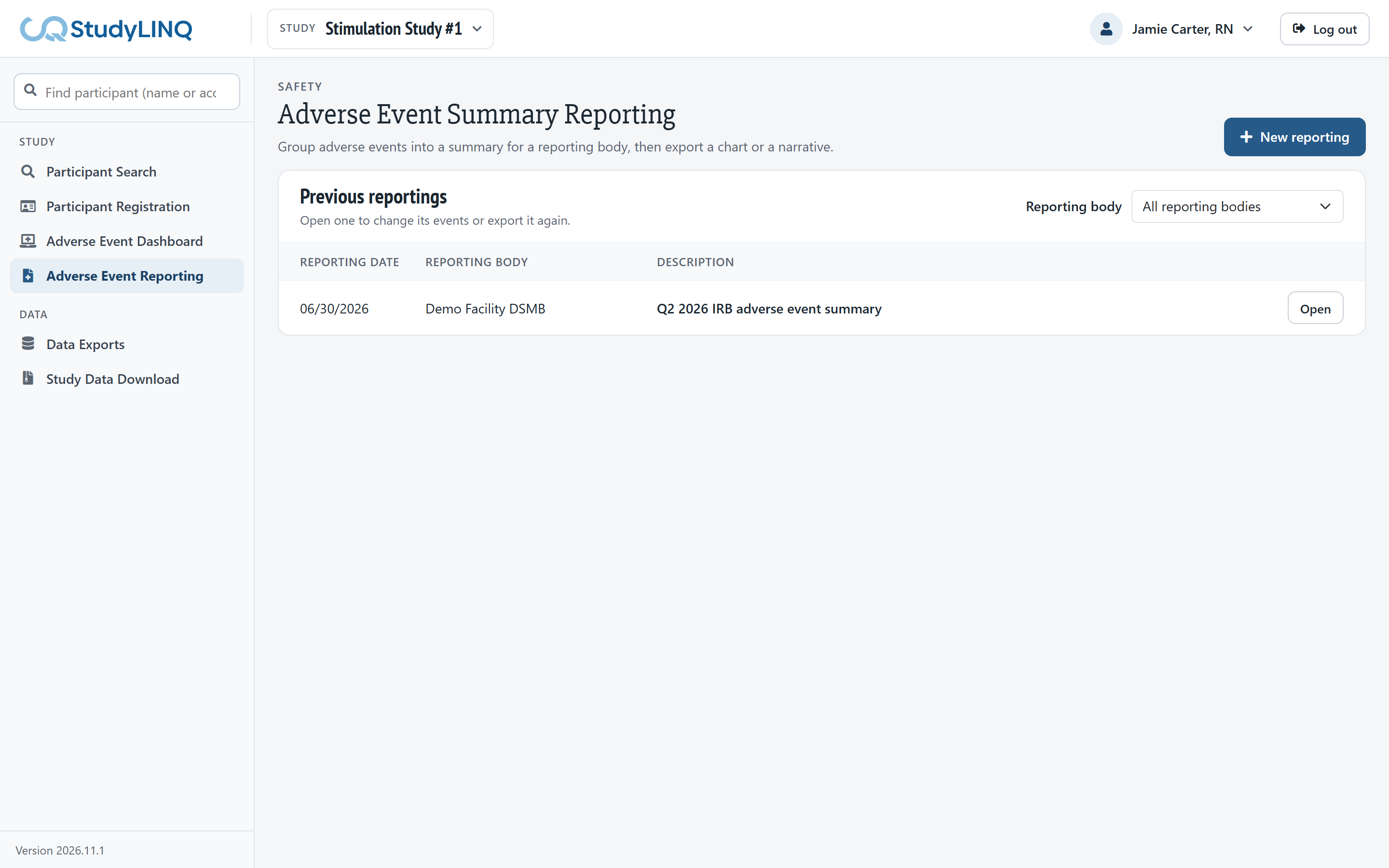
Opening a previous reporting
-
Choose a Reporting body to narrow the list (optional).
-
Click the reporting (or Open).
Creating a reporting
-
Click New reporting.
-
Under Reporting details, enter the Reporting date, choose the Reporting body and enter a Description.
-
Click Add or remove events….
-
Enter the From and To dates. The list searches again each time you change a date. Choose Group by Study or Participant and click Search if needed.
-
Tick the events to include. Tick the box in a group's heading to select all events in it. Events already included are ticked.
-
Click Update included events.
-
Click Save & close.
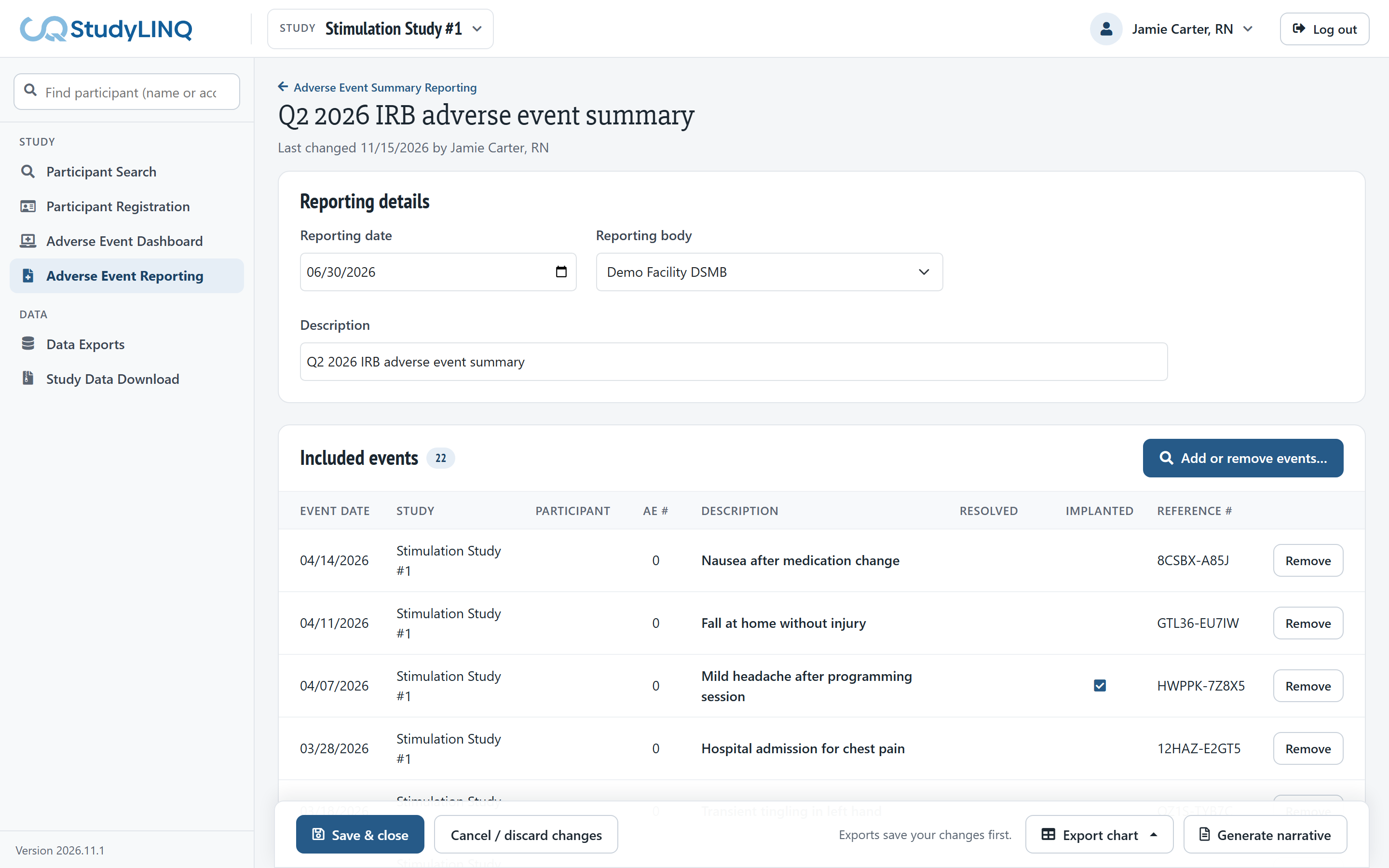
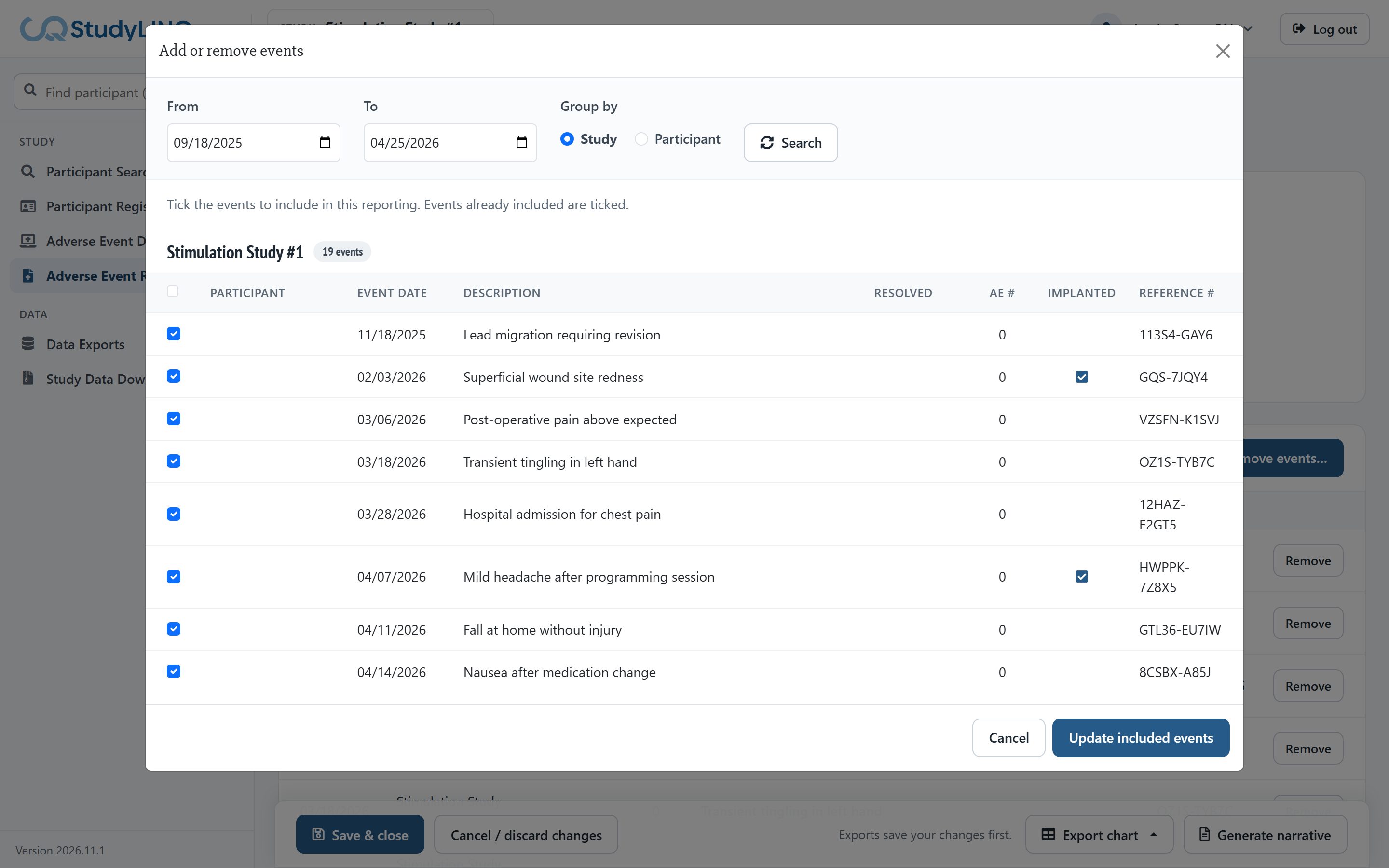
To take an event out, click Remove on its row under Included events, or untick it in Add or remove events…. To leave without saving, click Cancel / discard changes.
Exporting a reporting
-
Export chart, then By type, By study or By participant, for a chart of the included events.
-
Generate narrative for a written summary of each event.
Exports save your changes first.