
Most pages work on one participant at a time. Load the participant first; their card then shows at the top of the side menu, and the Participant pages appear in the menu.
Searching by name
-
In the side menu, click Participant Search.
-
Under Search by name, enter all or part of the Last name, the First name, or both.
-
Click Search.
-
In Search results, click Load next to the participant.
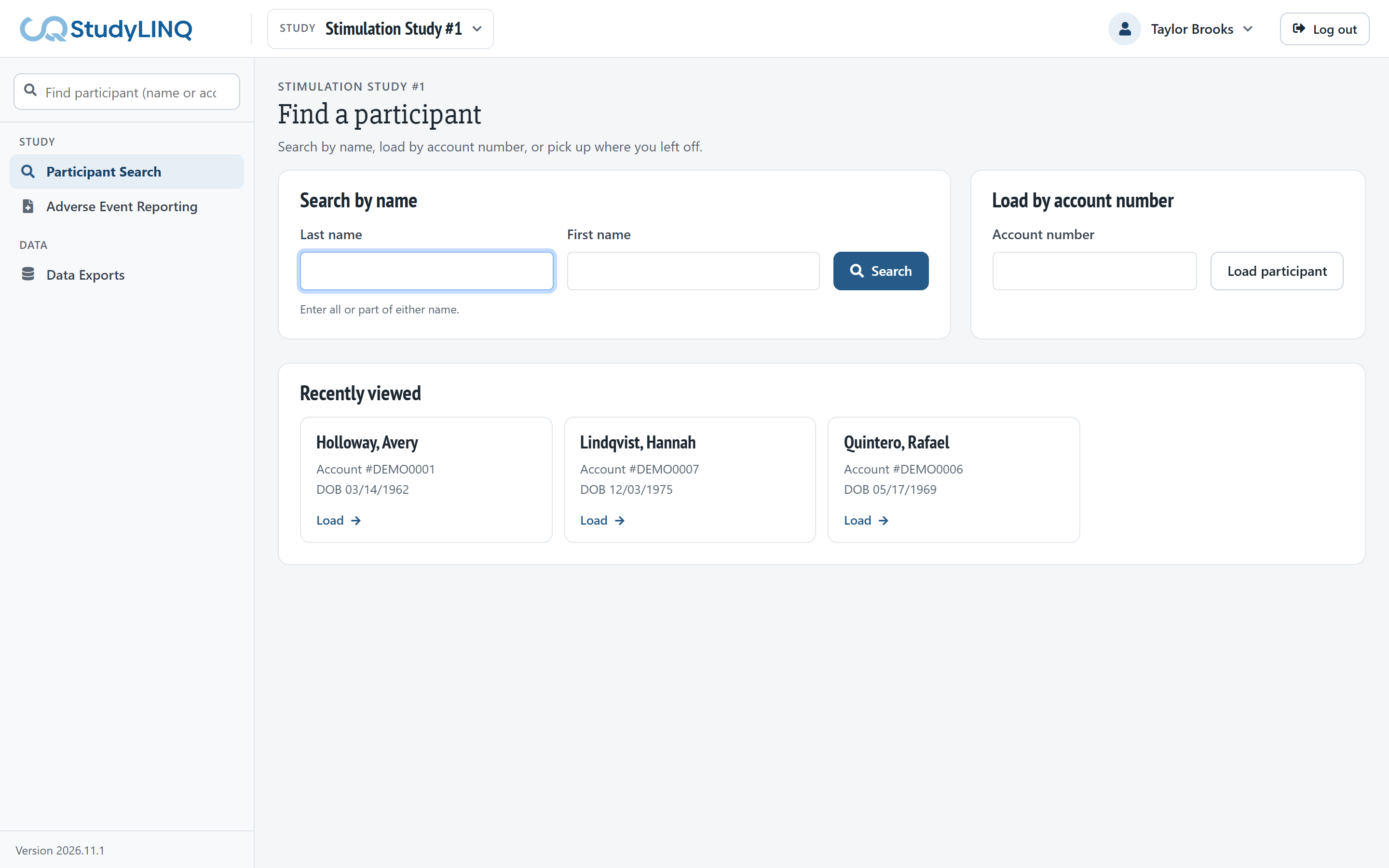
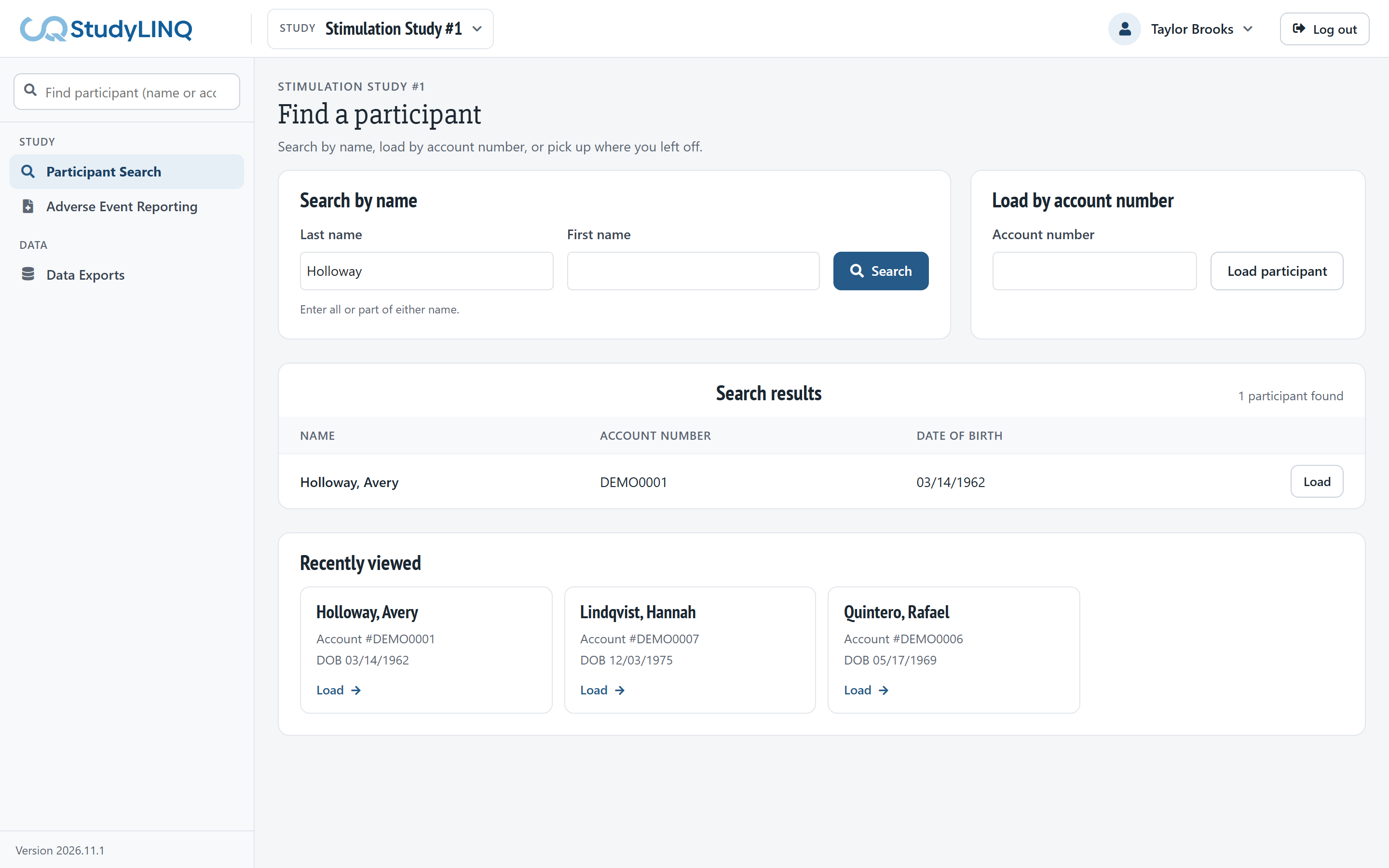
Search finds participants in the study selected in the top bar. If no one is found, check the spelling or type fewer letters.
Loading by account number
-
On Participant Search, enter the number under Load by account number.
-
Click Load participant.
Recently viewed participants
Participants you have loaded appear under Recently viewed on Participant Search. Click a name to load that participant again.
Quick search from any page
-
Type a name or account number in Find participant at the top of the side menu.
-
Click the participant in the list (or use the arrow keys and Enter). To load by an account number you typed, choose the Account number option.
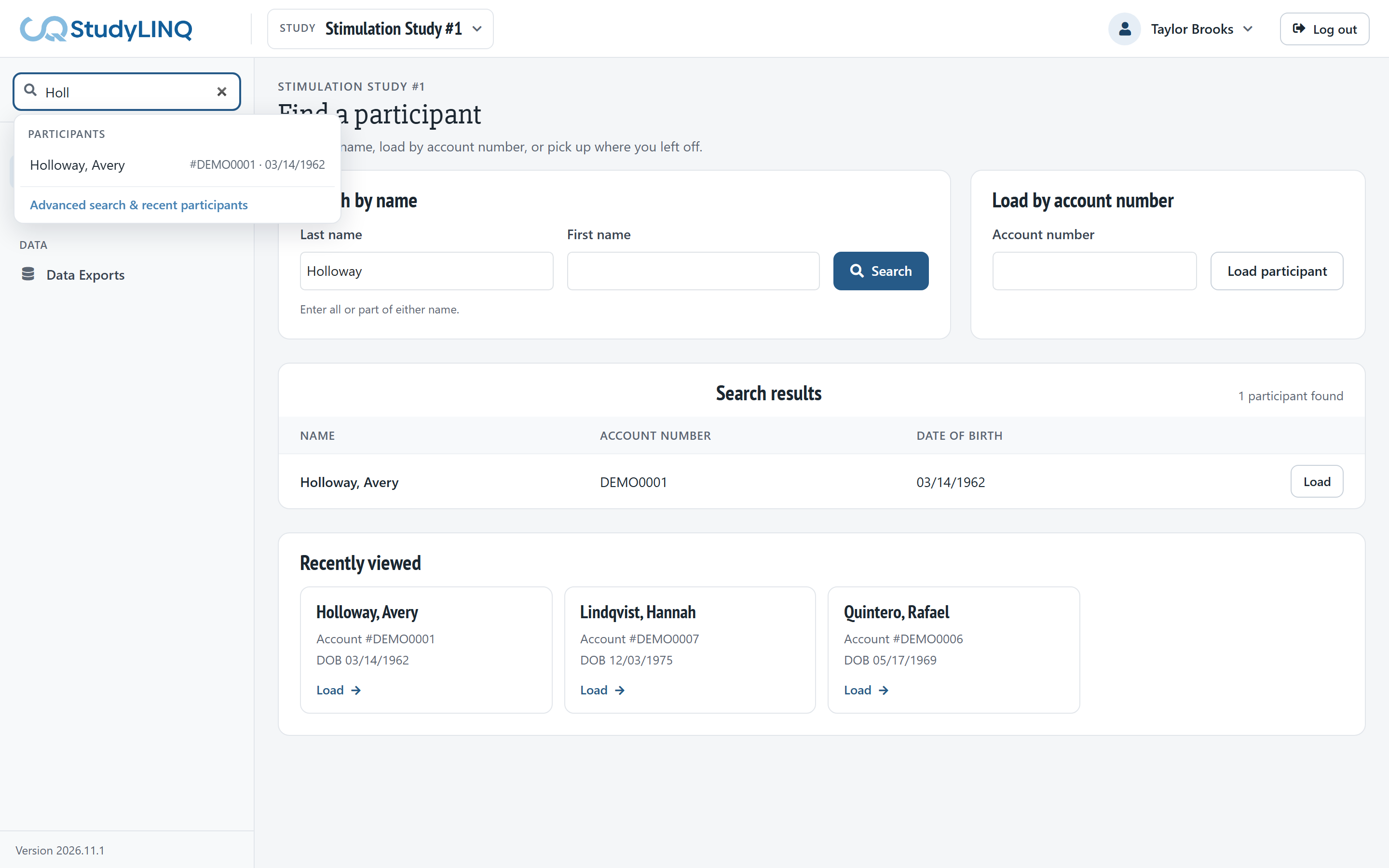
The box is shown when no participant is loaded.
Working with the loaded participant
-
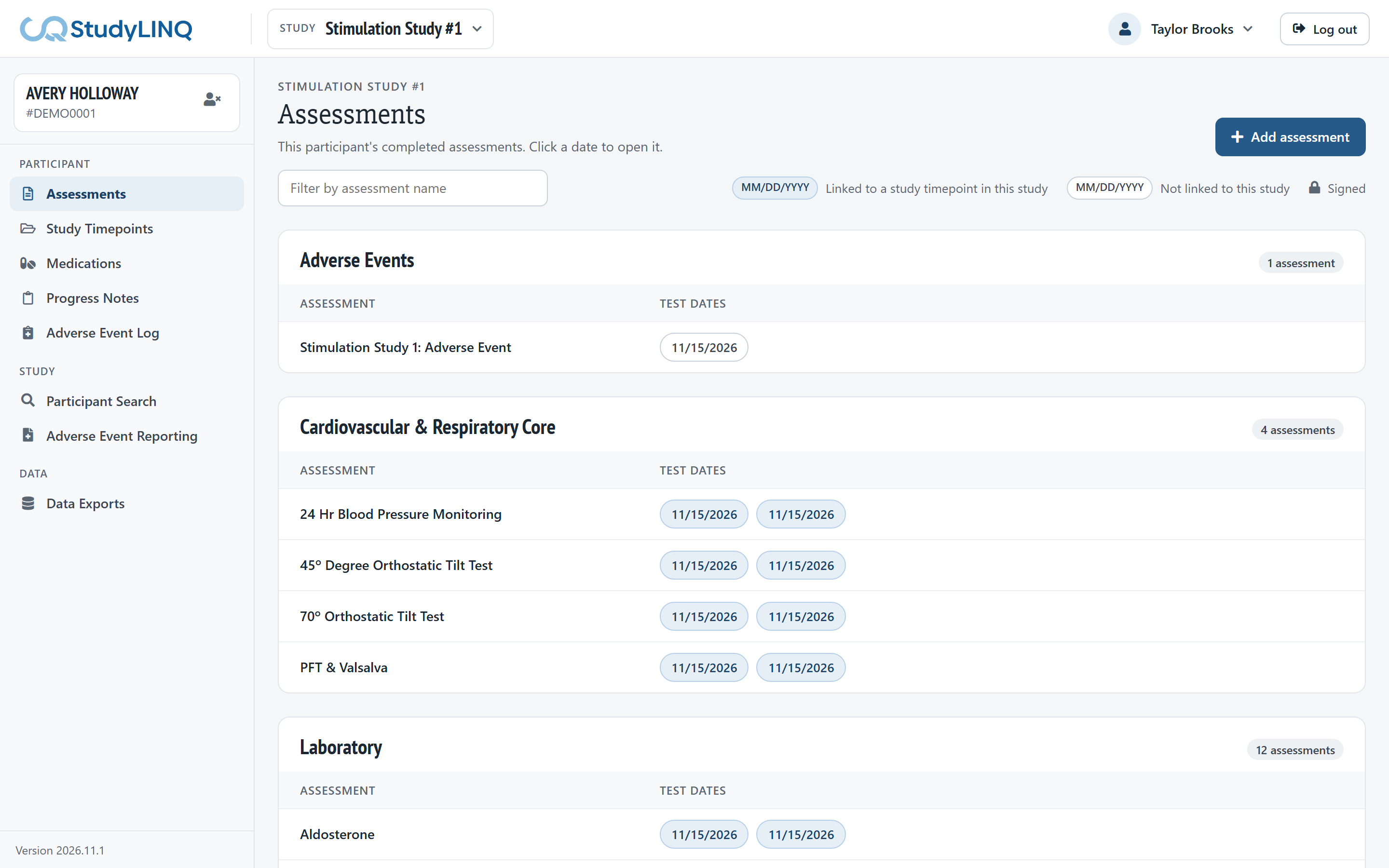
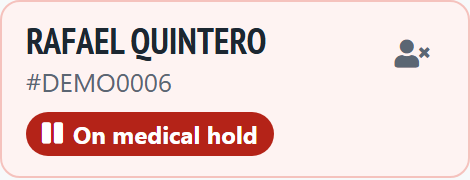
The participant's name and account number show at the top of the side menu.
-
On medical hold shows on the card when the participant is on a medical hold. Point to it to see the event.
-
To unload the participant, click the × icon on the card. Participant Search opens.
If a page says No participant loaded, load a participant first. If it says Not registered in CrossIQ, the participant needs a QIndexID; click Register in CrossIQ (see Participant Registration).